
The best Ableton template system is one lean Default Set, a few purpose-built Template Sets and small track or device defaults for anything you reuse inside many projects. Do not turn every new Set into a copy of one enormous studio project. That approach saves seconds at startup and creates months of stale routing, missing plug-ins and unexplained CPU load.
| What you want to reuse | Use this | Good examples |
|---|---|---|
| Every new Live Set | Default Set | Basic track count, returns, metronome preference, cue routing |
| A complete workflow | Template Set | Vocal recording, hardware jam, songwriting, mixing, live performance |
| One type of track | Track Default | Vocal input and utility chain, MIDI instrument starter, resampling track |
| One device's starting state | Device Default | Preferred EQ mode, Simpler behavior, configured Rack |
| A project sent to another computer | Project copy plus dependency audit | Collected audio, documented Packs and separately installed plug-ins |
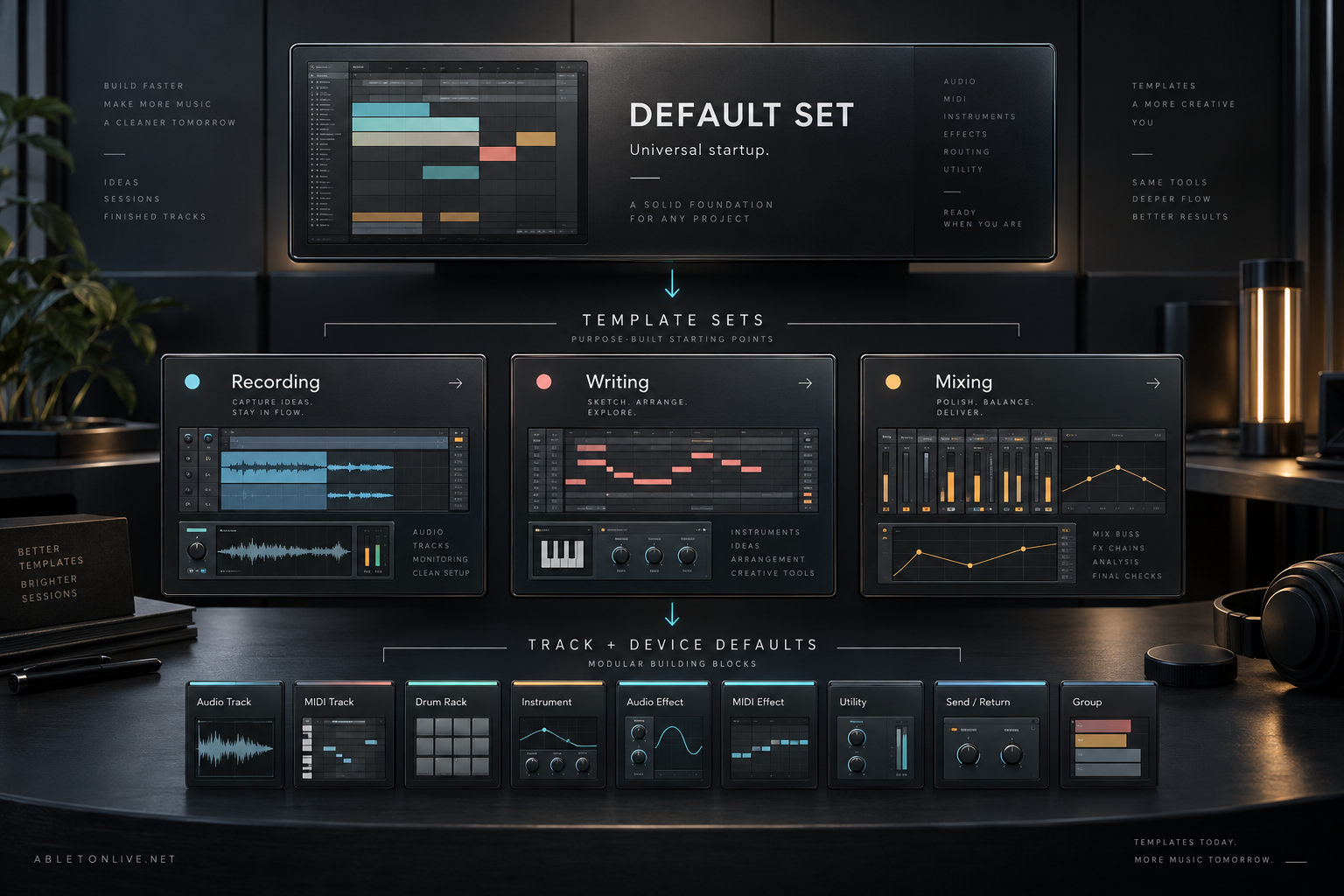
Default Set, Template Set or ordinary ALS project?
The Default Set is the configuration Live opens at launch and uses for a new Set. Ableton's current instructions let you replace it through File > Save Live Set as Default Set. Keep it universal. If a device, route or sample is useful only for one kind of session, it does not belong there.
A Template Set is a named starting point for a particular job. Choose File > Save Live Set as Template, then open it later from Browser > Templates. Live creates a new untitled Set from that configuration, so the template remains the source rather than becoming the current song.
An ordinary .als Set belongs to a Live Project and represents work you intend to keep developing. A custom Template Set is also based on a Live Set, but its location and opening behavior make it reusable. That distinction matters: the User Library is designed for custom presets, defaults, clips and templates, not as the home for ordinary song projects.
Build a Default Set that stays fast
Start from a blank factory Set or your current clean configuration. Add only decisions that survive nearly every project:
- the number of audio and MIDI tracks you actually want on every start;
- one or two return tracks with lightweight stock effects;
- cue and main-output routing that matches the regular interface;
- a restrained naming and color system;
- monitoring states that will not cause feedback when hardware changes.
A Default Set should open safely even when an external drive, controller or third-party plug-in is unavailable. Avoid sample clips, large instruments, analyzers on every channel and input assignments tied to a temporary interface. The Live 12 setup guide is the better place to establish audio, MIDI and library paths before saving a permanent starting point.
Save the Set as the Default Set, quit Live and open it again. The verification is simple: the Set should be ready for an unrelated new idea without deleting half of it first. If it contains genre-specific instruments or recording chains, move those into a Template Set.
Create separate Template Sets for real jobs
Make each Template Set answer one repeatable workflow. A recording template may include named inputs, a talkback or cue path and record-ready audio tracks. A writing template may use a small drum Rack, a bass instrument and a sketch return. A mixing template may contain groups, reference routing and meters without any creative instruments.
- Open a clean Set and create only the tracks, groups, returns and routing required for that job.
- Set safe monitor states and remove armed tracks.
- Delete unused clips, takes, locators and automation.
- Replace fragile third-party devices with stock tools where the exact plug-in is not essential.
- Choose File > Save Live Set as Template and give it a task name, not a vague name such as “Template 3.”
- Open it from Browser > Templates and confirm that Live creates an untitled Set.
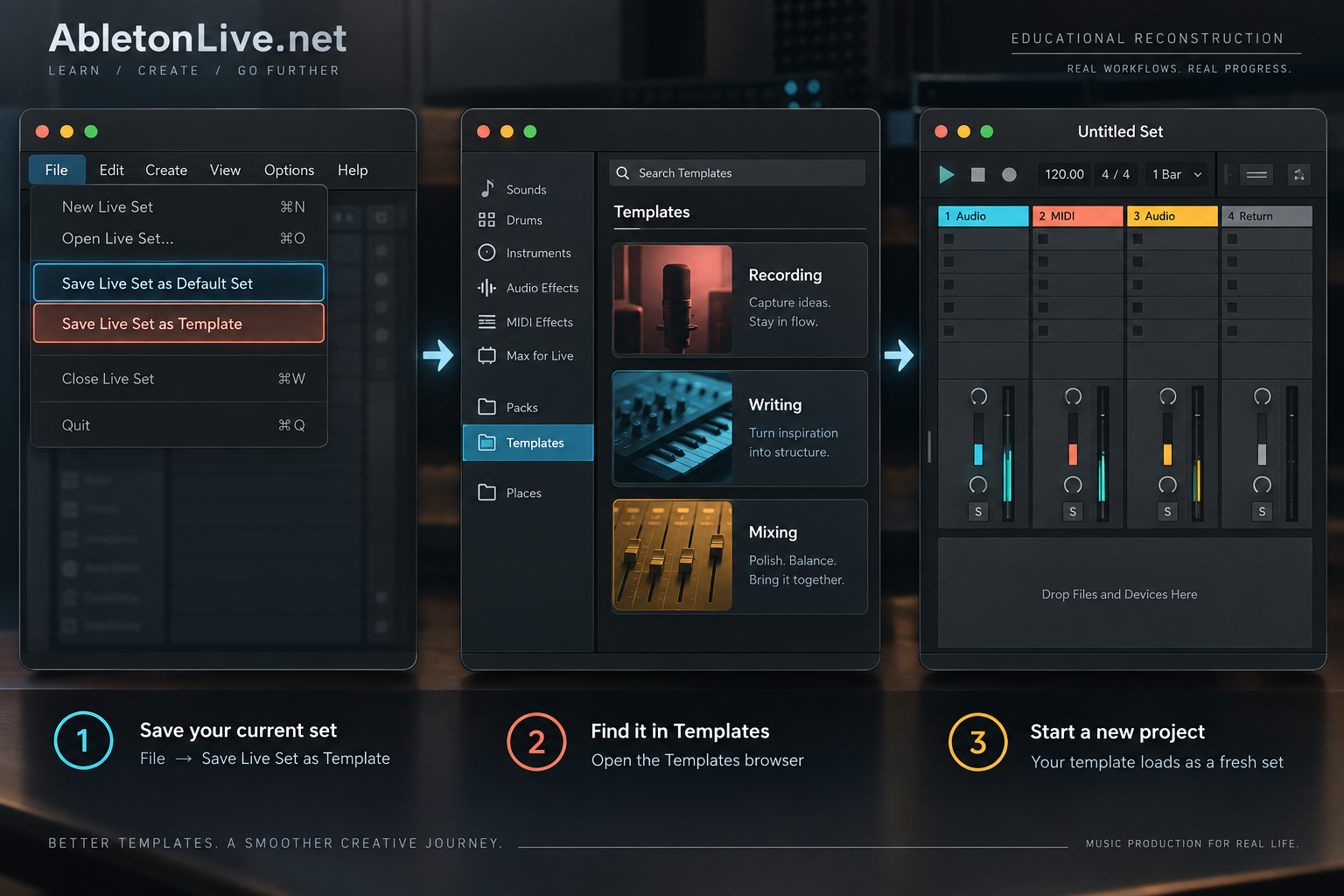
Live 10 and earlier used a different template route in Preferences and a Template.als file. Do not mix those older instructions into a Live 11 or Live 12 setup. If you are following an old tutorial, check the version before moving files manually.
Use track and device defaults for smaller building blocks
Many “template” needs are too small for a complete Set. Ableton documents separate defaults for Audio and MIDI tracks. A track default can keep an input or output choice and can load an instrument or effect when a new track is created.
This is a better home for a standard vocal utility chain, a resampling route or a preferred MIDI starter instrument. Device defaults work at an even smaller scale. They let an Ableton device open in your preferred state without preloading that device into every project.
Third-party plug-ins need one extra distinction. A plug-in configuration default remembers which parameters are exposed in Live's panel, but not the values inside the plug-in. Ableton's guidance is to save the plug-in in a Rack when its actual state must be recalled. The destination computer still needs that plug-in installed; our plug-in installation guide covers formats and scan paths.
Know what the User Library stores
Since Live 11, custom Template Sets are stored in the Templates folder inside the User Library. Defaults, presets, clips and referenced samples used by User Library items have their own folders there. This separation makes the library easier to back up or move between Live installations.
Do not save all songs inside the User Library. Keep ordinary projects in deliberate project folders with their own media. Back up the User Library as a reusable tool collection and back up Live Projects as creative work. Combining them makes restoration and missing-file diagnosis harder.
If templates disappear after moving storage, confirm the User Library path in Live's Library settings before copying files again. File > Manage Files > Manage User Library can inspect references and unused samples.
Make a template portable without pretending plug-ins travel with it
An ordinary Save stores references to media files. For a project that must move to another computer, Ableton's Collect All and Save workflow can copy selected audio, video and Max for Live devices into the Project folder. It cannot copy third-party plug-ins.
For a portable template package, use this audit:
- write down the minimum Live version and required edition;
- list required Packs, Max for Live devices and third-party plug-ins;
- remove devices that add no essential behavior;
- freeze or render demonstrations only when the recipient needs an audible reference, while keeping the limitation clear;
- collect referenced media in the project used for transfer;
- copy the entire Project folder rather than a lone
.alsfile; - open the transferred copy on a system that does not share the original sample paths before calling it portable.
The full Collect All and Save guide explains what Live copies and what remains an external dependency. If a received Set shows offline media, use the missing-sample recovery process instead of repeatedly saving new copies.
Check a downloaded Ableton template before trusting it
A download page may call a file a template even when it is a completed remake or an ordinary project. Before opening it, check the stated Live version, edition, Pack list, third-party plug-ins, file license and whether audio is included. “Royalty free” and “no additional plug-ins” are vendor claims unless the package and license prove them.
Open an unfamiliar Set with a conservative audio setup and save a separate working copy. Then inspect:
- missing media and missing device warnings;
- Master and return routing, especially external outputs;
- armed tracks, Monitor In states and feedback-prone inputs;
- devices on groups, returns and the Main track;
- automation, sidechains and hidden dependencies;
- CPU-heavy oversampling, lookahead and large sample libraries;
- the license for any MIDI, audio or presets you plan to release.
Keep the useful routing or arrangement lesson and remove the rest. A commercial project can be valuable as a study file without becoming the foundation of every future song.
Reset a template that crashes or opens badly
Ableton warns that corrupted audio or a problematic plug-in stored in a Default Set or Template Set can make a new project hang or crash. Restore the factory Default Set first, then isolate the saved template rather than reinstalling everything at once.
If disabling plug-in scanning lets Live open, inspect the plug-ins stored in the default or template. If the factory Set works, the failure is inside the customized starting point or one of its dependencies. Follow the startup crash isolation guide for the reset order.
A template system that remains useful
- Keep the Default Set small and universal.
- Create separate Template Sets for recording, writing, mixing or performance.
- Store repeated track chains as Track Defaults.
- Store repeated device states as device defaults or Racks.
- Keep ordinary projects outside the User Library.
- Audit samples, Packs, plug-ins and routing before sharing.
- Review templates after hardware, Live or plug-in changes.
The test is not how impressive the template looks when it opens. A good Ableton template removes known setup work, creates no mystery dependencies and stays easy to understand six months later.
