Short answer: “Sample Offline” means the Live Set still points to audio that is unavailable at its saved path. Reconnect the drive if one is missing, then use File → Manage Files → Manage Set → Missing Files → Locate. Search the smallest folder likely to contain the originals, verify uncertain matches, save the repaired Set, close it and reopen it. Only after that should you use Collect All and Save to make a portable copy.
Checked September 7, 2026: these Live 12 steps repair missing-media references on macOS and Windows. If all samples already play and you only need to move the project, use the Collect All and Save guide.
Protect the only copy before changing anything
Do not delete, rename or reorganize more files while the Set is broken. Duplicate the Project folder to a known backup location or confirm that a current backup exists. If the missing audio was recorded in Live, preserve every Samples/Recorded, Samples/Processed and backup folder you still have.
Open the Set and note the number of missing files. Save a new repair version of the Set rather than overwriting the last known version. A repair can point a clip at the wrong file while still removing the Offline label, so “no warning” is not yet proof of a correct result.
If the project came from another person, ask for the complete Project folder, not only the .als file. Ableton’s current audio clip and sample documentation explains that a clip stores a reference to an audio file; the audio is not embedded inside the Live Set itself.
Check the simple location failure first
Before running a search, restore the storage that held the file:
- mount the external SSD or sample-library drive;
- make cloud-only folders available offline;
- confirm a network share is connected;
- check whether the Project was copied without its
Samplesfolder; - look in the operating system’s Trash only if a recent move or deletion is plausible.
Do not assume the same drive letter, mount name or user-folder path exists on another computer. Opening a Set on a second machine changes the path context even when the audio still exists.
If the file exists but Live still marks it Offline
“I can see the WAV in Finder” does not prove that Live can read its saved reference. Right-click the File Manager’s column header and enable Path, then compare it with the file you found. Check the cause before searching every drive:
- Permissions: Live may lack access to the folder or external volume.
- Cloud placeholders: OneDrive Files on Demand or optimized cloud storage can leave a reference visible while the audio bytes are not local.
- Changed mount: the same external drive may have a different Windows letter or macOS volume name.
- External editing: the Live manual notes that a referenced sample remains offline while its Edit switch is engaged.
- Project identity: a removed
Ableton Project Infofolder can produce missing-media problems even after a previous collection pass.
Ableton’s missing-media guide also covers hidden Take Lanes. In Arrangement, turn off Automation Mode, right-click the track header and choose Show Take Lanes. A take can still be referenced even if it is absent from the audible comp. Follow the vocal comping guide if you need to identify which takes the arrangement uses; do not delete them merely to remove a warning.
Open Live’s Missing Files panel
- Choose File → Manage Files.
- Click Manage Set.
- Expand Missing Files and click Locate.
- Read the filenames before starting Automatic Search.
The Live 12 Managing Files and Sets manual describes Offline clips and instrument sample slots as references whose sample cannot be found; Live plays silence for them. The panel is therefore a link-repair tool, not an audio-recovery utility.
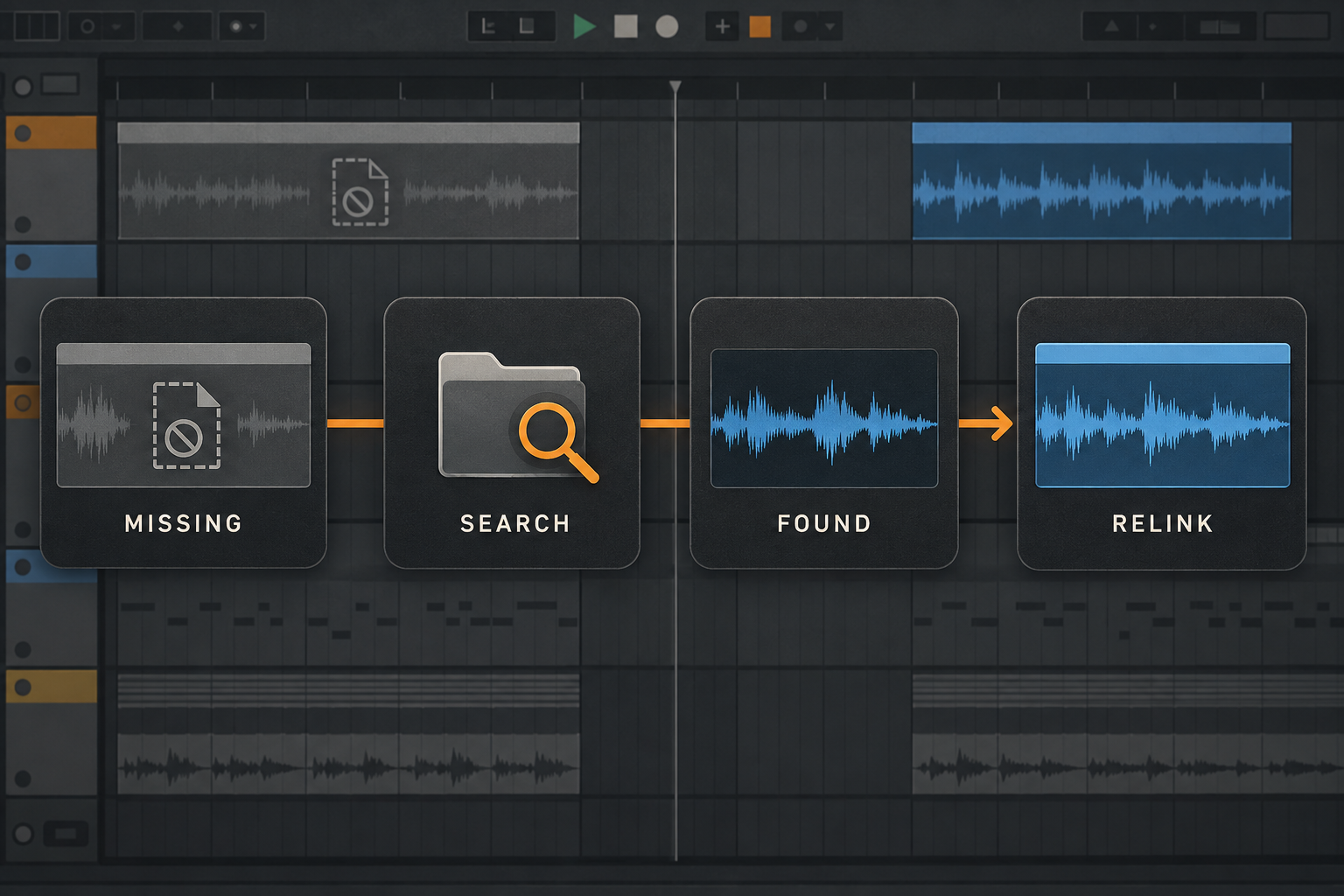
Group the problem by likely source. Recorded takes usually belong inside the Project. Commercial samples may live in a pack folder. A collaborator’s stem should be in the transferred Project. That distinction tells you where to search first.
Search the smallest likely folder
Expand Automatic Search, click Set Folder, choose the likely source folder, set Search Folder to Yes, then click Go. Start with the original sample pack or transferred Project rather than the whole drive. Ableton’s automatic replacement instructions describe this sequence.
Enable Search Project when the originals should be inside this Project. If you reorganized its folders, the manual’s folder-reorganization procedure specifies Search Project → Fully Rescan Folders → Go. A rescan cannot restore a deleted file; choose another known location or use manual replacement when nothing is found.
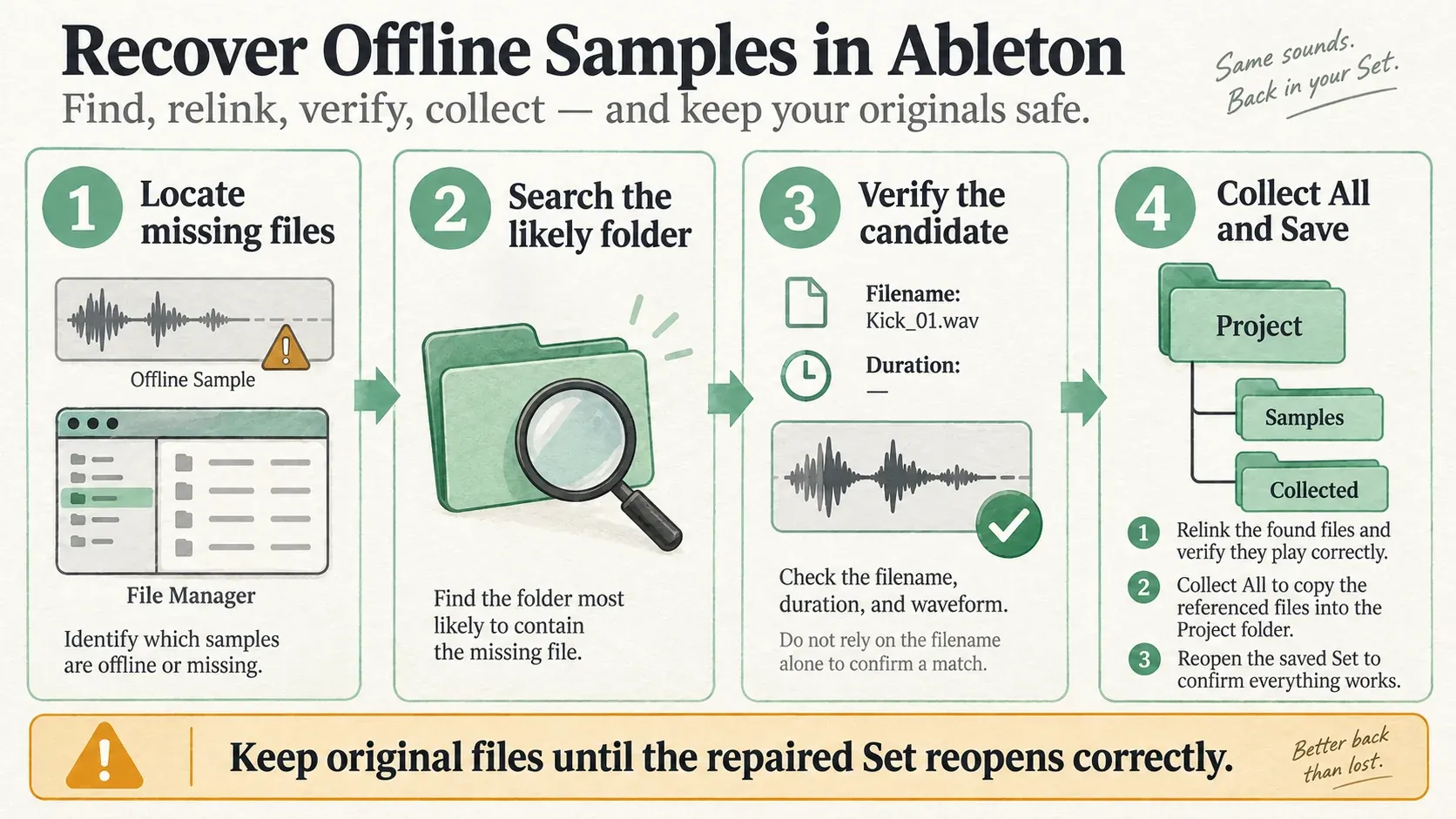
If a search finds just one candidate, Live can accept it automatically. Listen even when there was no choice dialog: two unrelated libraries may use the same filename, and clearing the missing-file count does not establish that the right recording was recovered.
Verify candidates instead of trusting the filename
For multiple candidates, click the question-mark icon beside the missing filename to show the choices in Live’s Browser. Audition them, then drag the correct file onto its missing-file row. For names such as Kick_01.wav, check more than the label:
- the original folder or pack name;
- file duration and size;
- sample rate and channel count where available;
- the waveform shape;
- the sound in its musical context.
Check every affected occurrence, not only the first clip you hear: replacing a referenced sample changes all clips in the Set that use that file. A different-length replacement may also alter retained Warp Markers. If the audio is wrong, return to the saved repair checkpoint instead of saving over the original. The Warp guide helps check timing after the correct recording has been recovered.
Use manual replacement when automatic search fails
If automatic search fails, find the original in Live’s Browser or Finder/Explorer and drag it onto the matching missing-file row—not onto an Arrangement track as a new clip. Accept Live’s offer to search nearby files only when the remaining missing files belong in that location.
Look for actual audio backups: a collaborator’s export, a copy of the complete Project, or the original sample download. An older .als in Live’s Backup folder is a saved Set version, not a copy of its WAV files. Ableton’s Backup Sets explanation describes version recovery; recovering a deleted take still requires the take itself, a usable audio render or a backup that contains its Samples files.
Collect All and Save cannot reconstruct deleted audio. Nor can a matching .asd file: that is sample-analysis and clip-settings data, not the recording. Keep any surviving files, but do not rename an ASD to WAV or expect an old Set to recreate the missing sound.
Save, close and reopen before collecting
- Save the repaired Set under a new version name.
- Close Live.
- Reopen that exact Set.
- Confirm the missing-file count is zero.
- Listen to every repaired section, including fades and processed clips.
Reopening checks that this saved version can resolve the references under the current storage conditions. Listening checks whether the replacements are correct. Neither guarantees that an external drive will be available tomorrow or that the project is ready for another computer.
Collect only after the links are correct
Choose File → Collect All and Save when you need the Set to travel, archive cleanly or stop depending on scattered external locations. The official Collect All and Save documentation says used audio and video are copied into Samples/Collected; used Max for Live devices can be copied into Presets. Plug-ins are not copied and must be installed separately.
Collection copies the used files from the selected locations, not every installed sample library. Choose the source categories the destination computer will need, including Factory Packs if those Packs will be absent. For the detailed choices, follow collecting a portable Project. Test the transferred folder on the destination machine, or a separate copy with original external sources unavailable, before removing any source files. Do not rename or disconnect the only original while Live is using it.
Keep recovery separate from memory and disk tuning
Relinking needs access to a file, not a larger audio buffer or RAM mode. Search one likely folder at a time and leave enough free storage for backups and collected copies. Live normally streams sample audio from disk; changing file references does not by itself load a whole library into RAM. If a restored file plays but the drive cannot sustain playback, that is a separate performance problem.
If playback then reports a drive warning, switch to the disk-overload diagnosis. Do not confuse an Offline reference with a drive that is present but too slow.
Prevent the next Offline warning
- Save each unrelated Set in its own Project folder.
- Collect before collaboration, migration or archival—not blindly after every small edit.
- Transfer the full Project folder rather than an isolated
.alsfile. - Keep sample-library mount names and paths stable.
- Verify cloud folders are downloaded before opening the Set offline.
- Back up recorded and processed Project media as files, not only the Set document.
For the rest of the recovery cluster, use the Fix Ableton Live hub. It keeps missing media separate from no-sound routing, disk throughput and plug-in scanning.
FAQ
Why does Ableton say Sample Offline?
A Live clip or instrument slot still references an audio file, but that file is no longer available at the saved location. The file may have been moved, renamed, left on a disconnected drive or omitted when the Project was transferred.
How do I relink missing samples in Ableton Live?
Open File → Manage Files → Manage Set → Missing Files → Locate. Expand Automatic Search, choose Set Folder, enable Search Folder and press Go. Check the audio matches before saving the repaired Set.
Can Collect All and Save recover a deleted sample?
No. Collect All and Save copies media that Live can currently access into the Project folder. It cannot recreate audio that has been deleted or was never included in the transferred Project.
Why are several samples candidates for one missing file?
Different recordings may share a filename. Use the question-mark icon beside the missing file to inspect candidates in the Browser, compare their location and audio, then drag the correct one onto the missing-file row. Check every clip that shares that reference.
Does Collect All and Save increase RAM use?
Collecting changes file location and uses additional disk space because it creates Project copies. It does not by itself load every sample into RAM; Live normally streams sample files from disk.
Should I search the whole drive for missing Ableton samples?
Try the original Project or sample-pack folder first. Broader searches can take longer and offer more duplicate candidates; use one only after the likely locations fail. Search does not recover deleted audio.
