Short answer: put a playable video clip in Arrangement View, set the exact time range and open File → Export Audio/Video. Enable a PCM audio format, turn on Create Video, pick an encoder your system offers and render. Before delivery, open the result outside Live and check a known sync point plus picture cuts near the start, middle and end. The file extension proves little about compatibility, because MOV and MP4 are containers and H.264 is a codec.
These steps cover Live 12 on Mac and Windows. The soundtrack needs its own audio export settings, chosen separately from the video codec. If the picture is right but the soundtrack seems quieter, run the quiet-export checks before you change the mix.
The whole job fits into six steps, and the sections below explain each one:
- Prepare the working movie. Keep the original picture master, and create a compatible H.264 proxy only when you need one, checking its frame timing.
- Place video in Arrangement. Import the playable movie to an Arrangement audio track and keep the agreed start and sync reference.
- Select the render range. Inspect Render Start and Render Length so the export includes the agreed opening and tail.
- Enable audio and video rendering. Open File → Export Audio/Video, select Main for the main mix, enable PCM audio and turn on Create Video.
- Match the delivery specification. Pick an available encoder that meets the requested codec, dimensions and frame rate, then export the movie and audio.
- Check the exported files. Compare the movie and the separate audio from the same start, with sync checks near the beginning, middle and end.
Separate container, codec and frame cadence
| Layer | Example | Why it matters |
|---|---|---|
| Container | .mov or .mp4 | Holds video, audio and metadata; extension does not name the internal codec |
| Video codec | H.264 | Determines how picture frames are compressed and decoded |
| Frame rate | 23.976, 24, 25, 29.97 or 30 fps | Defines picture timing and handoff expectations |
| Keyframe cadence | Every frame or every two frames for a working proxy | Affects scrubbing and CPU/disk trade-offs |
| Audio inside video | Rendered Main output | Must match the separate delivery file and sync marks |
“It is an MP4” tells you the container, not the codec. Two files with the same extension can use different encoders, profiles, dimensions and frame rates, so write those values down from the handoff before converting anything.
Use a working proxy instead of the heaviest delivery master
Ableton’s current Using Video guide recommends H.264 and frequent keyframes for smooth work. A keyframe every frame, or at least every two frames, makes seeking easier but can produce a much larger file. That makes it an editing proxy: keep the original delivery master elsewhere, with its exact frame rate and duration on record. If the picture still needs finishing in an NLE, the Resolve codec and format guide lists what imports cleanly.
Live 12 on Windows no longer needs the third-party import codecs that Live 11 and earlier required. On Mac, Live uses Apple’s AVFoundation framework for video playback and export. A legacy codec pack is therefore the wrong first fix for a Live 12 problem.
On Windows, try the source in Windows Media Player first. A forbidden drag cursor can mean Live and File Explorer are running with different permission levels, and launching Live as Administrator just to import the file only makes that worse. For a black picture, test the Video Window on the primary monitor, then look at graphics drivers and the per-app GPU choice where your system offers it. If the export reports a write error, try a folder your account can write to. Ableton’s 16-bit workaround sits under its Live 11-or-earlier Windows section and is not a general Live 12 delivery requirement.
Place the video in Arrangement View
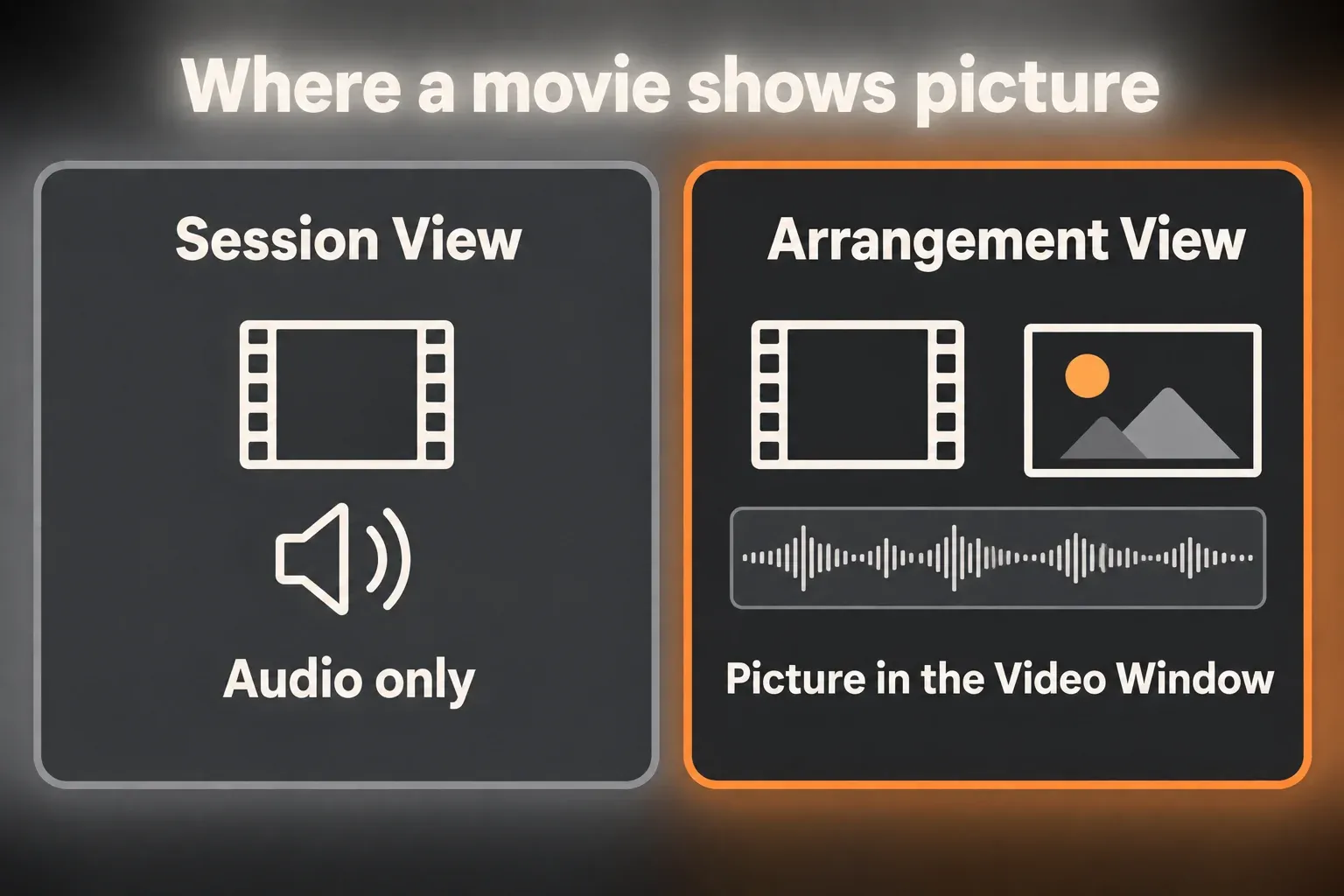
The Live 12 video manual states that picture displays only for video clips in Arrangement View; a movie loaded into Session View is treated as audio. Drag the working movie to an Arrangement audio track and make sure the Video Window shows actual picture before you score or export anything.
Locked picture should stay at its intended speed. Live’s video tempo-leader workflow lets music follow picture hit points, while a warped video that is not the active tempo leader can change speed instead. Check the clip’s Warp and Leader/Follow state before changing the song tempo. Consolidate, Reverse and Crop replace a video clip with an audio-only clip inside the Set, and they leave the original movie file untouched.
Preserve the handoff start and sync reference
Film and post-production handoffs may include pre-roll, a countdown, a two-pop or a visible sync frame. Keep that material unless the receiving editor explicitly asks for a trimmed file, and note the source timecode or exact Arrangement position of the reference. Your audio export should begin at the same agreed start, even when the music comes in later.
Put a Locator at the reference and at two or three later picture cuts; they become your post-export checks. A render can open and sound fine while starting one frame late or drifting by the end.
Set the exact render range
The selection runs from the agreed start through the required tail. Leave room for final ambience, reverb and dialogue or music decay, and agree whether the picture continues through that tail. Check Render Start and Render Length in the export dialog, because the visible zoom level does not define the export. A missing opening or a cut-off tail calls for a range check before yet another codec conversion.
Main gives you the post-fader main mix. If the editor also needs separate music, dialogue or effects files, export those stems as their own delivery with the same start and length. All Individual Tracks does not create a movie with switchable stem soundtracks.
Enable PCM before Create Video
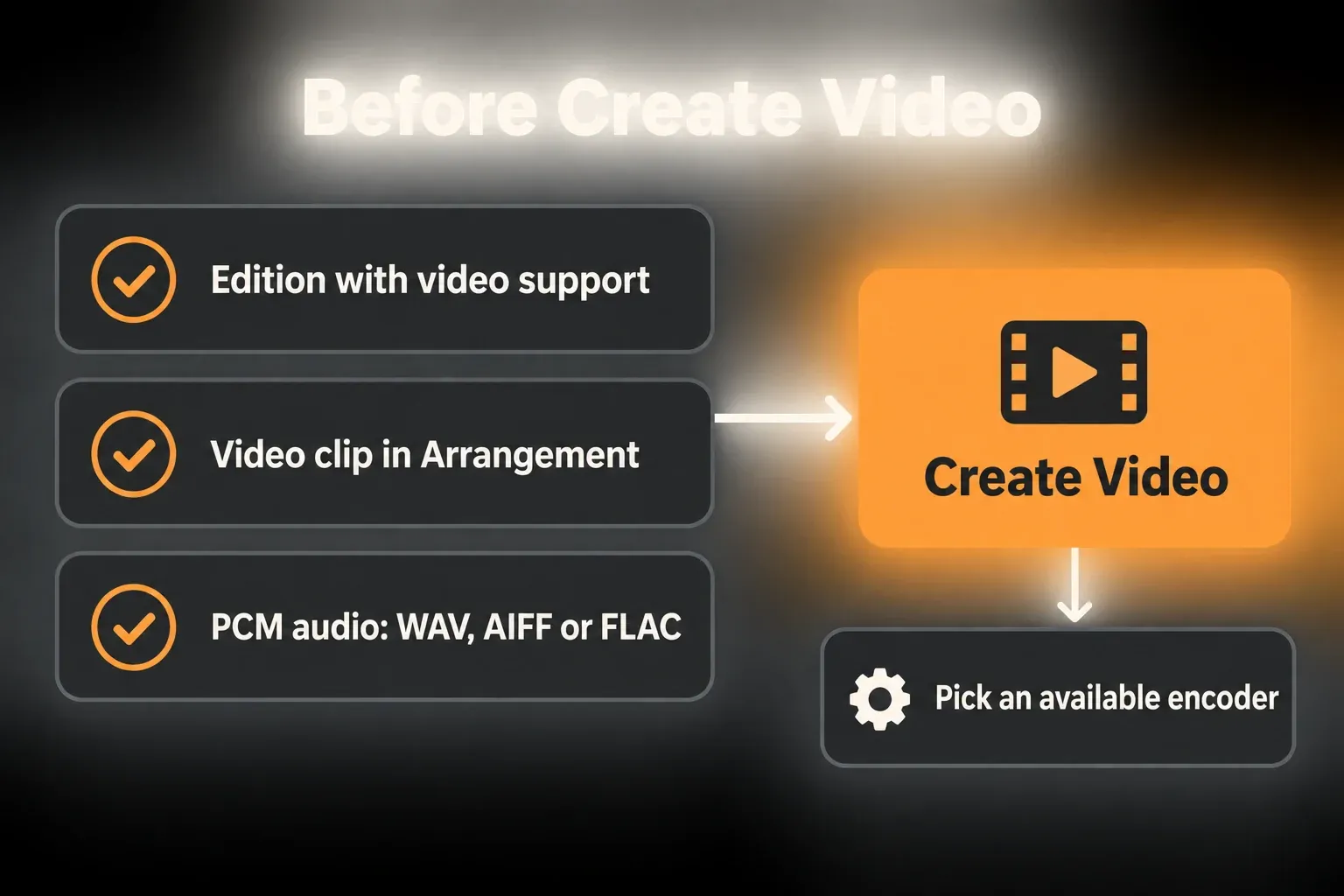
Open File → Export Audio/Video. The current video rendering reference says Create Video is enabled only when the Set contains an Arrangement video clip. Ableton’s troubleshooting guide adds a second condition: Encode PCM has to be on, with WAV, AIFF or FLAC selected. Video can never be the only render, since Live always creates rendered audio as well.
When the Create Video button stays grey, work through the edition and rendering prerequisites, then test playback:
- Use an edition with video support and put an actual video clip in Arrangement View. Session View treats an imported movie as audio.
- Enable Encode PCM and choose WAV, AIFF or FLAC. MP3 on its own is not the documented video-export setup.
- Confirm that picture plays in Live’s Video Window. If it does not, sort out the import before exporting.
Choose the encoder by the receiver's specification
The encoder has to meet the receiving editor’s specification. Mac and Windows can offer different encoder names and options, and Edit shows the selected encoder’s settings when that button is available. A receiver might, for example, ask for an MP4 review copy with H.264 picture at 1920 × 1080, matching a 25 fps source, plus a separate 48 kHz WAV. That is one sample handoff, not a universal preset. If Live’s available encoder cannot meet the request, deliver the agreed audio and let the editor assemble it with the original picture.
Keep the agreed frame rate exactly: 23.976 is not interchangeable with 24 fps, nor 29.97 with 30. Constant and variable frame rate also behave differently. In HandBrake’s frame-rate controls, Same as Source with VFR keeps variable timing, while CFR conforms the file to one rate. If variable-rate footage behaves inconsistently, try a constant-rate proxy agreed with the editor. Conversion is a diagnostic option and does not prove that every sync fault comes from VFR, so check the duration and sync marks afterwards.
Do not use video compression to solve an audio problem
The video encoder shapes picture compression, while the audio settings still decide the rendered soundtrack. Leave normalization off unless the delivery specification asks for it, avoid early dither when more post work follows, and deliver the separate high-quality audio file the editor requested even when the review movie already carries sound.
Give the movie and the WAV matching revision and start-reference names, such as Scene03_v04_start00-00-00. Earlier delivered versions belong in a separate folder, so the editor cannot pair yesterday’s picture with today’s soundtrack by accident.
Verify sync outside Live
- Open the exported movie in an external player, or in a video editor with frame stepping when frame accuracy matters.
- Check the first intended picture frame and the agreed start reference against the source.
- Compare the two-pop or other agreed sound-and-picture sync mark.
- Compare a marked picture cut near the middle with the matching point in the Live Set.
- Check a final marked cut or transient to see whether the offset grows over time.
- Compare the exported dimensions, duration and frame rate with the delivery specification.
- Import the separate audio render and the movie into the receiving editor at the same agreed start, then compare alignment and listen for missing or changed audio.
A fixed offset points first to source placement, the clip Start Marker and the render start. An offset that grows points to frame timing or unintended stretching. These are routes for investigation, and the symptom alone does not diagnose the cause. Try a short render from a copy of the Set before moving a whole score. If the picture already fails inside Live or the export reports an error, follow Ableton’s video troubleshooting steps.
Keep the proxy workload manageable
- One working proxy is enough, alongside the original picture master. Frequent keyframes help seeking but take more storage, and a smaller file is not automatically easier to decode.
- Video is not free in RAM. Watch Activity Monitor on Mac or Task Manager on Windows while opening the same Set with and without the proxy, and compare the actual memory and CPU pressure.
- Finish transcoding before a demanding playback or export test, and avoid running several encodes next to the instrument-heavy Set.
- Leave disk space for the proxy, the rendered PCM audio and the movie. Keep the original source and a restorable project copy, and delete only exports you have positively identified as disposable.
Which Live editions support video?
Checked September 7, 2026: Ableton’s Live 12 comparison lists video import/export in Intro, Standard and Suite. The Using Video guide explicitly excludes Live Lite and Live 10 Intro, and that older Intro restriction does not apply to Live 12 Intro. No codec installation can add video support to Lite.
The mixing and export workflow takes care of the audio delivery that goes with the review movie, especially when the editor needs separate stems or a different soundtrack format.
FAQ
How do I export a video from Ableton Live?
Put a playable video clip in Arrangement View, select the exact range and open File → Export Audio/Video. Enable a PCM format, turn on Create Video, choose an available encoder and export, then check the result outside Live.
Why is Create Video greyed out in Ableton?
The button needs an edition with video support, a video clip in Arrangement View and PCM audio encoding, and Session View treats movies as audio. Selecting a range that covers the intended picture decides what you get, but range overlap is not a documented condition for enabling the button.
Does Ableton support MP4?
Yes, Ableton lists MP4 with H.264 among the supported imports. The codec still matters, and renaming another format to .mp4 does not convert it. On Windows, Ableton uses playback in Windows Media Player as its compatibility check, so confirm that the file also plays in Live.
What video codec should I use with Ableton?
Ableton recommends H.264 with frequent keyframes for working video, because it plays back more smoothly. For delivery, the receiver’s required container, codec, dimensions and frame rate decide.
Why does Ableton video drift out of sync after export?
Start by comparing known marks at the start, middle and end. A constant offset calls for checking clip placement and the render start, while drift that grows calls for checking frame timing and unintended Warping or stretching. Variable-frame-rate footage is one possible route to investigate, not a universal diagnosis.
Can Ableton export video without audio?
No. Live’s current manual says video rendering always produces rendered audio as well. Enable PCM audio before Create Video, and deliver any requested separate audio file alongside the review movie.
