
Short answer: play the exported file and the live mix through the same interface output, and make sure the Main chain is not applied twice. The comparison clip stays at neutral gain, because turning it up only hides the problem. If both sides measure and sound the same in that controlled test while the media player is still quieter, the player and system volume path is where to look before you touch the mix.
Checked September 5, 2026, for Live 12 on Mac and Windows. This guide diagnoses a level difference in a stereo Main export played through an ordinary Main-to-interface route. Custom hardware loopback, split outputs and monitor processing each need their own signal-path check. It does not replace the format and delivery settings guide, and it sets no mastering loudness target.
Write down the two playback paths
“It sounds quieter after export” usually compares two different systems until you prove otherwise. So start by writing down the path on each side:
| Live playback | Export playback |
|---|---|
| Live Main → driver/interface output → monitor control → speakers or headphones | Rendered file → player gain/EQ/normalization → system or driver output → monitor control → speakers or headphones |
| Main effects and Main fader act on the live mix | The Main render already contains that processing and fader state |
| The driver path may differ from the system mixer | Per-app volume, output selection or player processing may differ |
Pick a comfortable monitoring level and leave the interface knob, headphone gain and speaker level alone for the whole A/B. Note any player EQ, enhancements and loudness normalization, then switch them off temporarily for the comparison. A limiter is the wrong answer to an unknown volume control. In Windows 11, check the player’s app volume and output device under Settings → System → Sound → Volume mixer. In Music on Mac, Sound Check and per-song volume are separate controls, found under Music → Settings → Playback and Song → Get Info → Options. Put your listening preferences back after testing.
Confirm that you rendered Main
Open Export Audio/Video and look at Rendered Track. The current Live 12 selection reference defines Main as the post-fader signal at Live’s Main output. That means the export does not capture every cue, direct-monitor or external-output signal you might also be hearing.
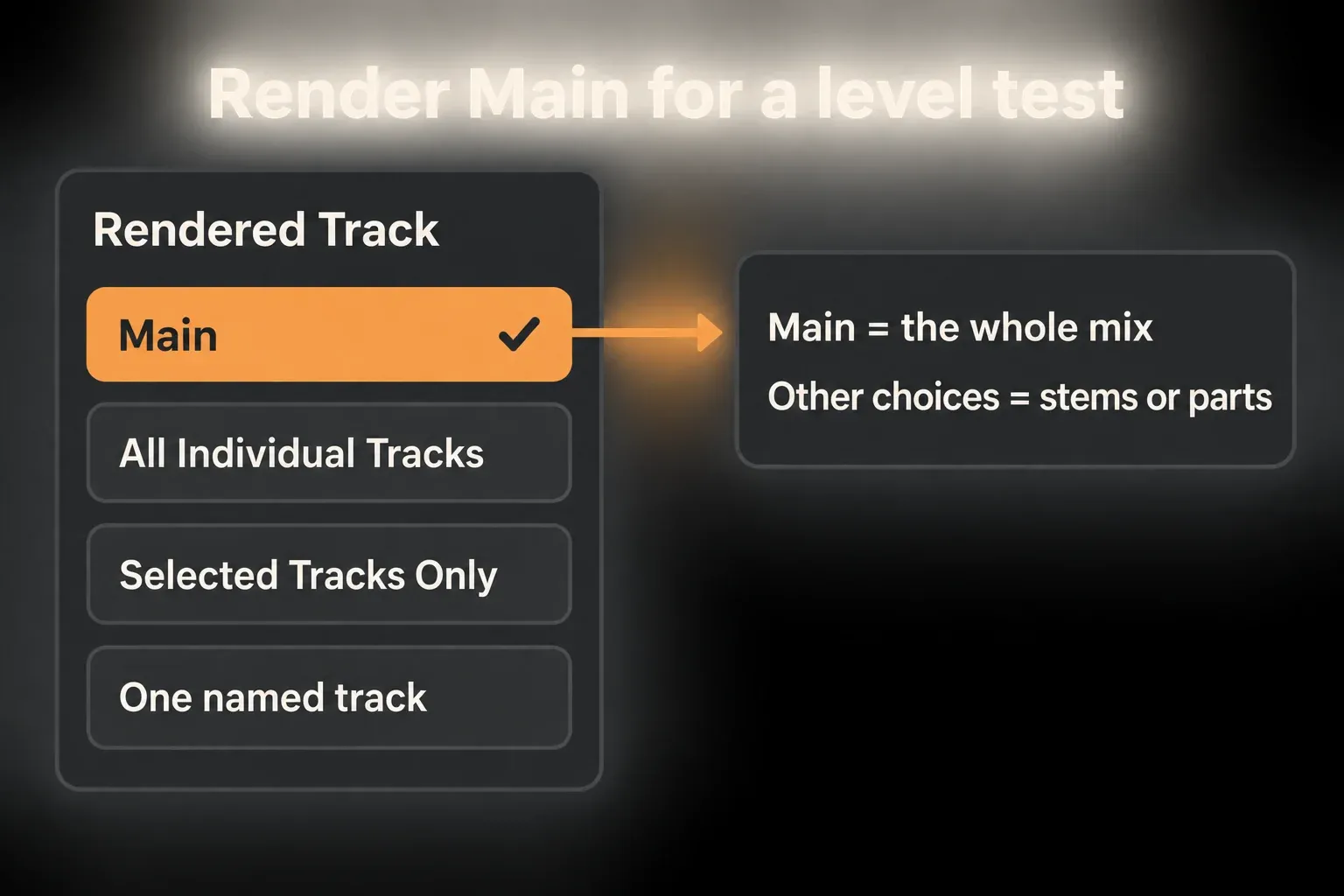
Exporting a selected track, a group or all individual tracks is a different job, and the stems and parts workflow explains its Return/Main options. For this test, render Main over a short passage where the difference is actually audible. If Session clips have overridden the Arrangement, restore the intended playback and automation first, then confirm Render Start and Render Length. A selected time range alone does not decide which Session and Arrangement material is sounding.
Keep the problem file and a note of how it was exported. Then make a separately named control render: Main, WAV, the project sample rate, 32-bit float, no export dither, Normalize Off, Convert to Mono Off and Render as Loop Off, with the original Main fader and mix processing untouched. These are diagnostic settings, not a new delivery spec. If the problem file used normalization or another conversion, the new control is not an exact reproduction of it, and it should not be treated as one.
Import the render without processing it twice
- Save the Set before testing and keep the original problem file. Export the short control passage with the settings above before adding the temporary comparison controls.
- Note your import preferences, then turn off Auto-Warp Long Samples and Create Fades on Clip Edges in Record, Warp & Launch settings. Add a new audio track outside any group, with no devices, Monitor Off and recording disarmed.
- Import the control file and line up its actual start with the exported passage. In the clip, check for Warp Off, no unwanted fades, clip gain at 0 dB, transpose and detune at zero, and no accidental clip-envelope changes. Saved .asd defaults can override the global preferences, so look at the clip itself.
- Set the comparison track to 0 dB with centered stereo pan. Turn every send fully down to −∞, leave the track unassigned to crossfader A/B and do not cue it. Route Audio To directly to Ext. Out on the exact stereo channel pair that Main uses.
- After the control export, add a temporary Utility as the last device on Main. Set Channel Mode to Stereo, both L/R phase-invert switches off, Gain 0 dB, Width 100%, Balance centered and Mono/Bass Mono/DC off. Its Mute switch silences the live Main path without moving the original Main fader or muting source and sidechain tracks.
- For live playback, keep the comparison track inactive and the Utility Mute off. For file playback, switch Utility Mute on, then activate the comparison track. Go through a state where both are muted, so the two paths never play together, and leave all original mix controls as they are.
- Replay the same passage from the same start. Compare Main’s output meter during live playback with the comparison track’s output meter during file playback, and listen for level, balance and missing content. Raising the file’s gain to force a match would defeat the test.
- Finish with the comparison track inactive, remove the temporary Utility and restore the noted import preferences. Confirm the original Main route and mix state before the next export, and never export with the temporary mute still on.
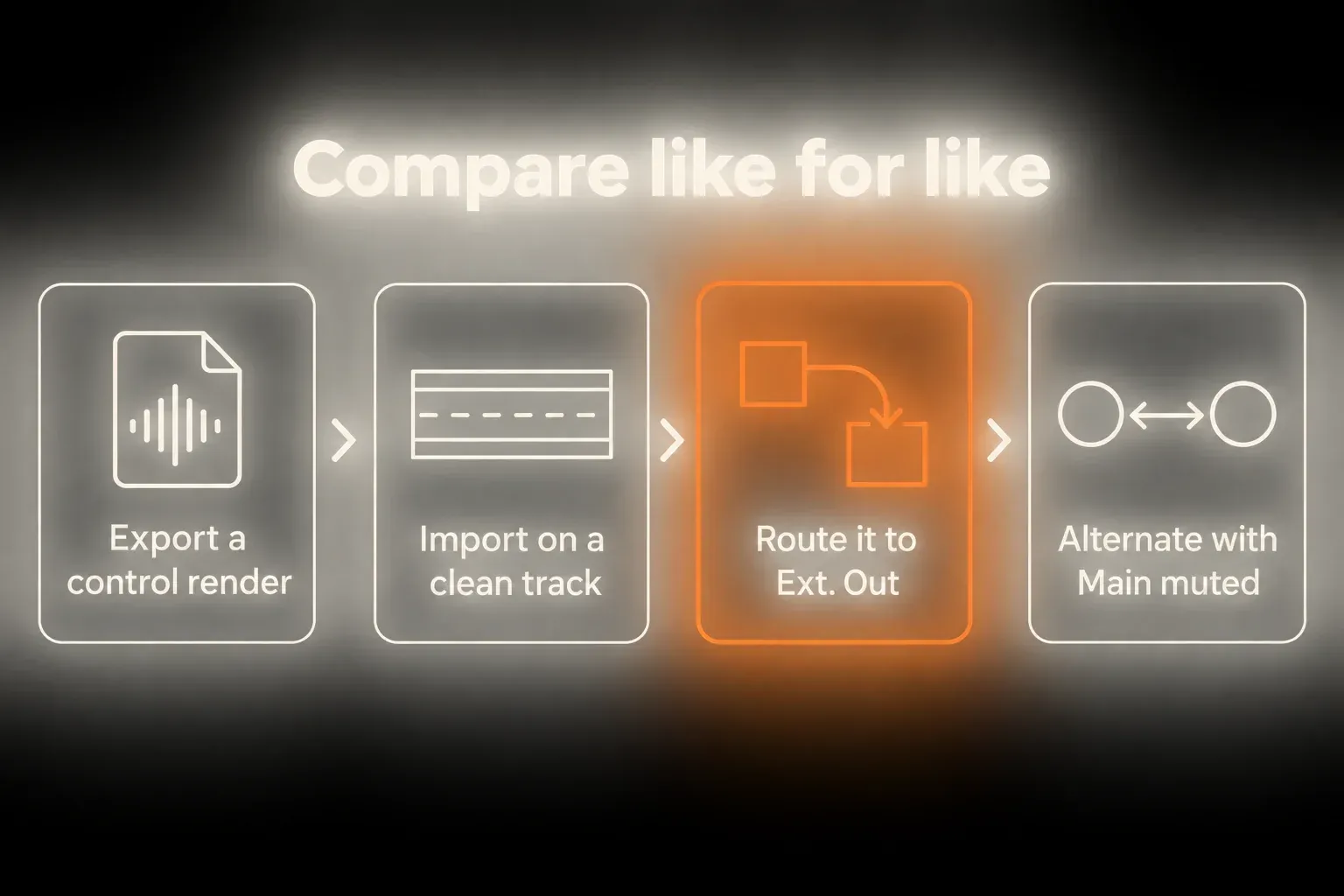
Matching the volume control here means removing different playback gains. It does not mean normalizing two different signals until they look equal. Utility’s Mute control only switches the live route off and on; routing the imported file to Ext. Out is what keeps it out of a second Main chain. When the control file matches, the original file’s settings or the outside player become the suspects. When it does not, recheck this test route first, then look at the source and render conditions.
Use meters to confirm what your ears report
Read the native Main output meter for the live pass and the imported track’s native output meter for the file pass. Live’s mixer meters show output levels during clip playback but input levels while monitoring, which is why the comparison track uses Monitor Off. A file routed straight to Ext. Out never passes through Main, so the Main meter cannot measure it. Reset the peak holds, compare the same passage, and use peak, RMS and your ears together. A similar maximum peak alone does not prove the whole file is identical.
A null test needs two independently obtained signals. Duplicating one exported file and inverting the copy only compares the file with itself, which says nothing about whether the export matches the live Set. For a deeper optional test, compare the control export with an independently recorded real-time Main output, using the neutral playback conditions in Ableton’s Audio Fact Sheet for both files so the comparison itself does not add a difference.
Optional: compare two independent recordings
- Before capturing, leave the comparison render inactive and remove the temporary Main-mute Utility. Restore the exact original mix and automation state. Note the recording preferences and choose 32-bit recording, since export bit depth does not set recording bit depth.
- Add a recording track with Audio From set to Resampling and Monitor Off. Set Audio To to Sends Only with every send at −∞, arm it and record the same Main passage in real time. This captures a new performance of Main, not a copy of the exported file. Disarm the track afterward and keep its original recorded file.
- Open a separate empty QA Set at the same sample rate, and check that its template has no track or Main devices. Import the export and the real-time capture on separate tracks. Disable Warp, fades and unintended clip defaults, and use 0 dB clip, track and Main gain, zero pitch changes and centered pan, with sends off and neither track assigned to crossfader A/B.
- Align the corresponding audio at sample resolution, allowing for any capture offset or leading silence. Add Utility to only one of the two file tracks: Channel Mode Stereo, Gain 0 dB, Width 100%, Balance centered, Mono/Bass Mono/DC off and Mute off. Enable both the L and R phase-invert controls, and sum the two tracks through the neutral Main path at a safe monitor level.
- Inspect the residual without turning the monitoring up aggressively. Cancellation supports equality under those conditions. A failed null does not by itself prove a faulty export, because alignment, Warp, conversion, dither, random instruments, modulation, plug-in initialization or hardware may differ. Restore all recording and import preferences after the check.
The resampling route records Main, and the recording track’s own output is suppressed during capture. The extra Sends Only setting with zero sends also stops that capture track from feeding the mix afterward. Recording bit depth lives in Record, Warp & Launch settings. This two-file check is worth the effort only when the simpler level test has not answered the question, and a variable performance should not be expected to cancel perfectly.
Do not confuse Main processing with monitor gain
The Main fader and Main devices are part of the rendered Main signal. A physical monitor knob or speaker gain after that output normally is not. Hardware processing that is deliberately routed back into the mix is a different case, so trace exactly where it enters Main. A loud monitoring level can make an unmastered mix feel loud while the file still has plenty of digital headroom.
The comparison that counts is the Main reading from the live pass against the direct-output file track, not Main against Main while the file bypasses it. If those levels and the audible content agree, that passage shows no export-level loss. It still does not prove the mix is as loud as a commercial master, or that every later section of the full file is correct.
When one peak holds the rest of the mix back, the gain-staging workflow is the right tool. Raising every track or clip together only eats headroom and leaves the balance problem where it was.
Understand what Normalize changes
The Normalize rendering option applies constant gain so the rendered file’s highest peak reaches the available maximum headroom. It is not a loudness target, a compressor or a true-peak mastering process, and constant gain leaves the relative dynamics inside the file unchanged.
The named neutral control uses Normalize Off. Write down whether the original problem export had it on, because that difference matters when you read the result. If a delivery later calls for peak normalization, make a separate version and judge it for that purpose. A single isolated peak can still leave a normalized file with low average loudness, which is exactly the complaint in an Ableton forum thread about quiet exports where Normalize was switched on.
Normalize will not repair a render that selected the wrong track or left out processing. Fix the source first.
Check automation and real-time variables
When one instrument or section is quieter only in the export, replay the same selection and watch:
- Main and group automation;
- Return levels and sidechain sources;
- random, generative or unseeded plug-in behaviour;
- external hardware, routing and the device’s real-time rendering requirements;
- plug-ins that document a real-time render requirement.
Live automatically detects supported External Instrument and External Audio Effect paths that require real-time rendering, so hardware does not simply vanish from every export. Check that the device is connected and its route works, let previous tails settle, and test the affected passage. If you need a live input or an unpredictable performance to stay exactly as played, capture it first. The Main resampling documentation explains the internal capture route, and individual plug-in documentation takes priority when offline and real-time modes differ.
Check mono and channel routing
If the export is narrower or missing elements as well as quieter, check that Convert to Mono is off for a stereo comparison. Phase cancellation during mono conversion can weaken some material while leaving other parts intact.
The media player also has to use the intended stereo device and channels. An interface cue mix, a monitor controller or an OS accessibility setting can fold, attenuate or route channels differently from Live’s direct driver path.
Compare against references at matched level
A commercial release can sound louder because its arrangement, dynamics and mastering differ, and your WAV may have lost nothing at all. That is a separate question from comparing your own live mix with its export. For tone, punch and balance, turn the reference down for a level-matched A/B, but keep that gain adjustment away from any measured difference between your live mix and its own render.
Chasing a platform number or adding heavy limiting makes sense only after the mix survives a level-matched comparison. This diagnostic exists to decide whether the difference lives in the file, the playback path or the production.
Keep the test light on CPU, RAM and disk
One short PCM control file is enough to start; full-song copies in several formats only add clutter. Keep the source Set editable and the original problem file and its settings. The independent real-time capture is worth adding only when you need the deeper comparison, and after fixing the cause, check the complete final export, including its opening and tail.
- CPU: the temporary Main mute prevents double playback, but the source devices keep processing. If the Set overloads during A/B, compare the export and the independent real-time capture in a separate clean Set without the original instruments.
- RAM: one comparison clip avoids extra sample libraries, yet the original Set and its plug-ins stay loaded. Opening several copies of a heavy project is the wrong way to compare.
- Disk: keep the labeled diagnostic files and the editable original. Remove only confirmed throwaway test files after the fix and the full delivery check, and never delete required media.
Decide whether the difference is in the file or playback
If the neutral control matches the live mix, look at the original problem file’s settings and the player or system path separately. If it is still lower in the controlled route, recheck the comparison setup, then investigate render selection, automation, returns, mono conversion and device behavior. Change one cause at a time and repeat the same passage.
The Fix Ableton Live hub keeps playback discrepancies apart from other faults. Once the diagnosis is settled, the mixing and export workflow handles the actual delivery. A short diagnostic success still does not replace checking the complete final file.
FAQ
Why is my Ableton export quieter than playback?
Make a named neutral Main render and import it without Warp, unwanted fades or gain changes. Send it straight to the same external output, clear of extra Main or return processing, and compare Main’s live output with the imported track’s output one at a time. If the control matches, the original export settings and the player or system path come next, before any change to the mix.
Should I normalize my Ableton export?
For a neutral comparison with the live Main signal, keep Normalize Off and note whether the original problem file used it. Normalize applies constant gain up to the highest peak, which is not loudness mastering. A separately named normalized version makes sense only when peak normalization is part of the delivery requirement.
Does Ableton export the Main effects?
Rendering Main captures the post-fader Main output, including the active Main device chain. Individual-track and stem exports can use different Return/Main effect options, so check the Rendered Track choice.
Why does the WAV sound correct in Ableton but quiet in a media player?
The player may use a different output device, operating-system volume, EQ, enhancement or loudness-normalization setting. Match the device and volume path, or use the controlled re-import comparison.
Can converting to mono make an export quieter?
Yes. Stereo material with opposing phase relationships can partly cancel when summed to mono. Keep Convert to Mono off for a stereo comparison and look into phase before delivering a mono file.
Should I add a limiter because the export is quiet?
Not until the path test proves the file itself is too quiet for the intended delivery. A limiter cannot fix a lowered player volume, a wrong render source or missing routing, and limiting too early can change the mix.
