Short answer: enable Remote for the intended controller input, create and test one mapping at a time, and limit continuous controls to useful ranges. Absolute knobs and faders need a takeover mode, and relative encoders need the correct message mode. Rehearse bank changes and reconnection, and keep a separate way to stop playback or mute the output if the controller fails.
Checked September 8, 2026 against the Live 12 remote-control manual. Everything here concerns manual Live mappings. A controller’s Control Surface script, custom modes, messages and LED feedback can behave differently, so check them against that model’s documentation and the actual show Set.
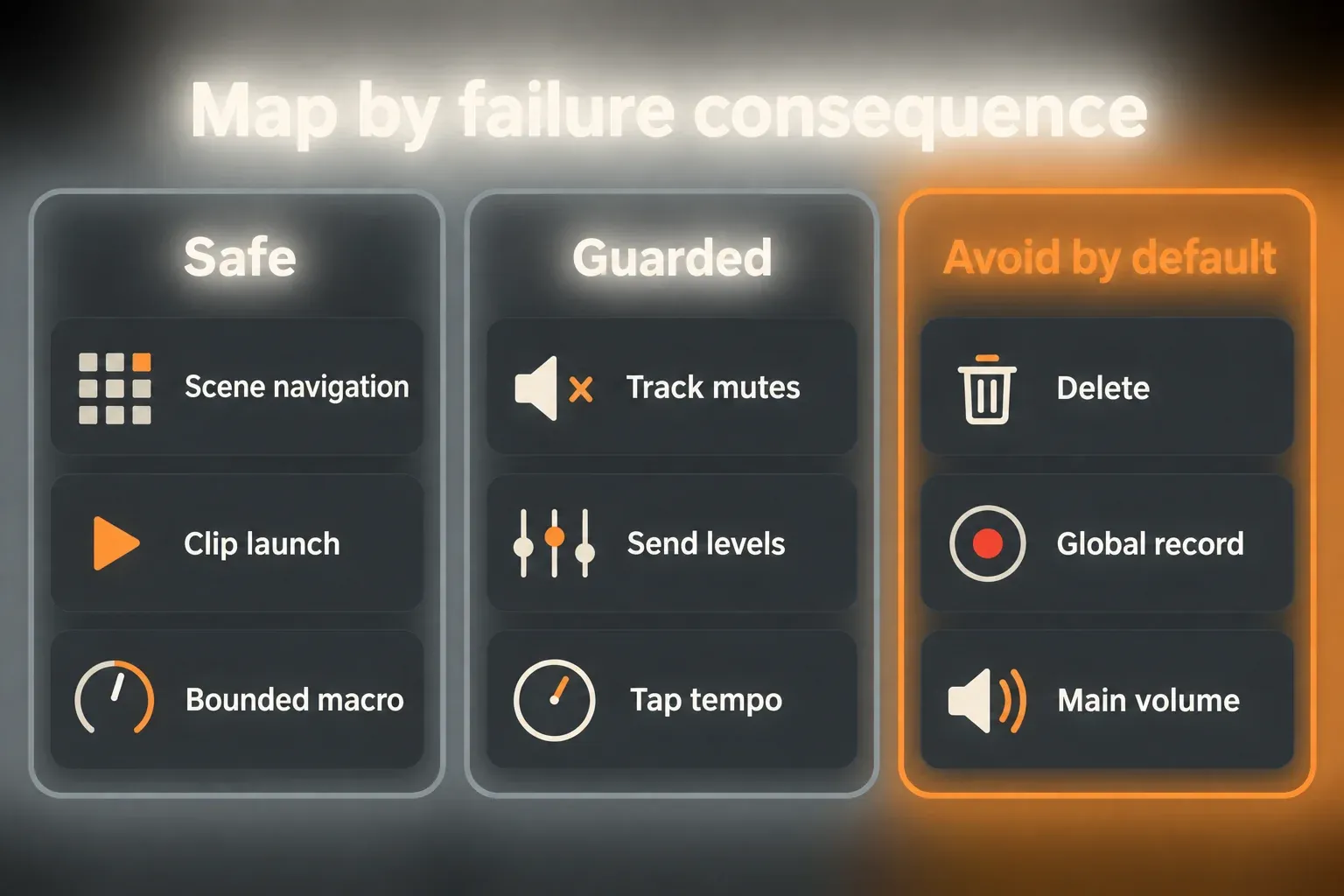
Map by failure consequence
Before mapping a control, decide what an accidental press would do. A wrong scene selection is easy to recover from; an unintended Stop or a sudden jump in feedback is not. The performance and control guides cover the surrounding setup, and the mapping list itself should hold only the actions you need while playing.
Build the performance Set and recovery path first. The mappings should expose that tested workflow rather than invent a second one on the controller.
Separate remote control from played MIDI
In current Live 12.4, open Settings → Tempo & MIDI and enable Remote for the intended MIDI input. Older versions and some manual passages call the tab Link, Tempo & MIDI. Output Remote is only for a controller that needs and supports feedback. Track input carries played and recorded MIDI, and Sync carries clock synchronization, so switching everything on is not a mapping fix.
A note assigned to remote control stops being available as a note for the instrument. Live also merges incoming MIDI from Remote-enabled ports, which means two devices sending the same channel and note or CC can trigger the same mapping. A separate port is not enough isolation when both have Remote enabled. Use distinct messages or channels, or keep Remote off on a dedicated playing port and configure its Track input as needed.
Create one mapping at a time
- Enter MIDI Map Mode with the MIDI switch.
- Click one highlighted Live control.
- Move or press the intended hardware control once.
- Inspect the new row in the Mapping Browser.
- Set Min, Max and the message behavior before creating the next mapping.
- Exit Map Mode and test the control in context.
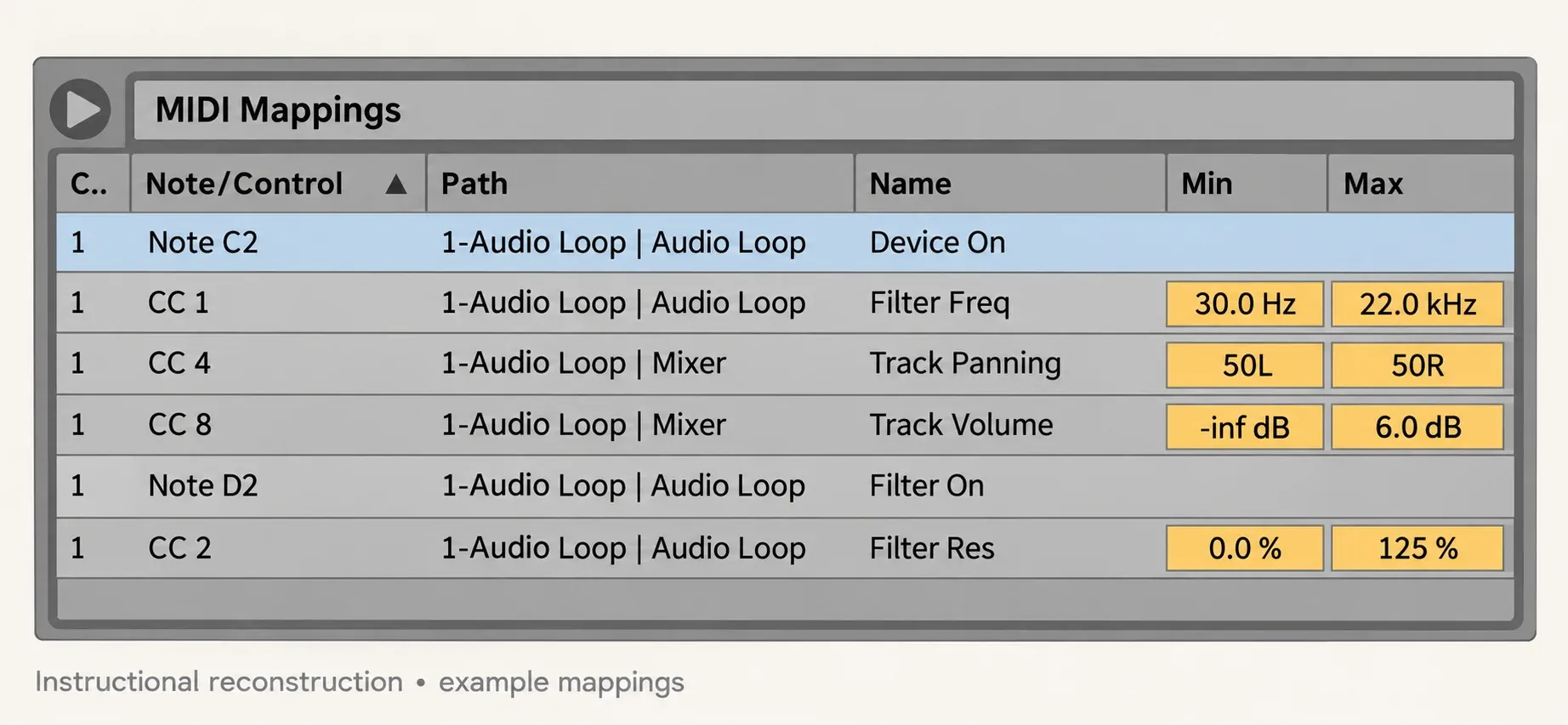
The Mapping Browser lists manual assignments for the current mapping mode, and it does not show a Control Surface’s context-dependent instant mappings. When a knob behaves unexpectedly, check both the manual row and the selected Control Surface script and hardware mode. Manual mappings can override instant mappings. Back up the working Set before removing assignments.
Bound continuous controls to the useful range
Ordinary 7-bit absolute CC sends values from 0 to 127, spread across the parameter’s Min/Max range. Live also supports pitch bend and 14-bit absolute values, so 127 is not a universal limit on MIDI resolution. Limit each destination by what it does to the complete mix, with particular care for feedback and output level.
Examples:
- filter frequency from warm to bright, not from closed silence to ultrasonic;
- delay feedback below the unstable region, unless runaway is a rehearsed effect;
- send level from dry to an approved maximum;
- an instrument macro between two playable timbres;
- track level within a correction band, not from -infinity to full gain.
As an illustrative starting point, a send might be limited from −∞ to −18 dB and raised only if the return stays under control in the full mix. That is not a universally safe ceiling, because return gain, feedback and source level still matter. Test the endpoints at a low listening level first, then at a suitable rehearsal level. Invert Min and Max only when reversed physical motion is what you want.
Choose takeover behavior for absolute controls
After loading a Set or switching banks, an absolute fader may sit somewhere other than the current Live value. Live offers three takeover modes:
- None: the destination jumps to the hardware value on the first movement.
- Pick-Up: the hardware does nothing until it reaches the current Live value.
- Value Scaling: Live converges smoothly until hardware and software match.
Pick-Up is predictable but can leave you hunting for the current value, while Value Scaling feels smoother. None only makes sense when an immediate jump is intended and safe. Test the chosen mode after every bank change you use in the show.
Prefer relative encoders for navigation and changing states
An endless encoder does not necessarily send relative data, so confirm its configured mode in the controller manual. While assigning, turn a relative encoder slowly to the left, then check Live’s detected mode in the Status Bar and correct it if needed. A mismatched relative encoding can move a value the wrong way or by an unexpected amount.
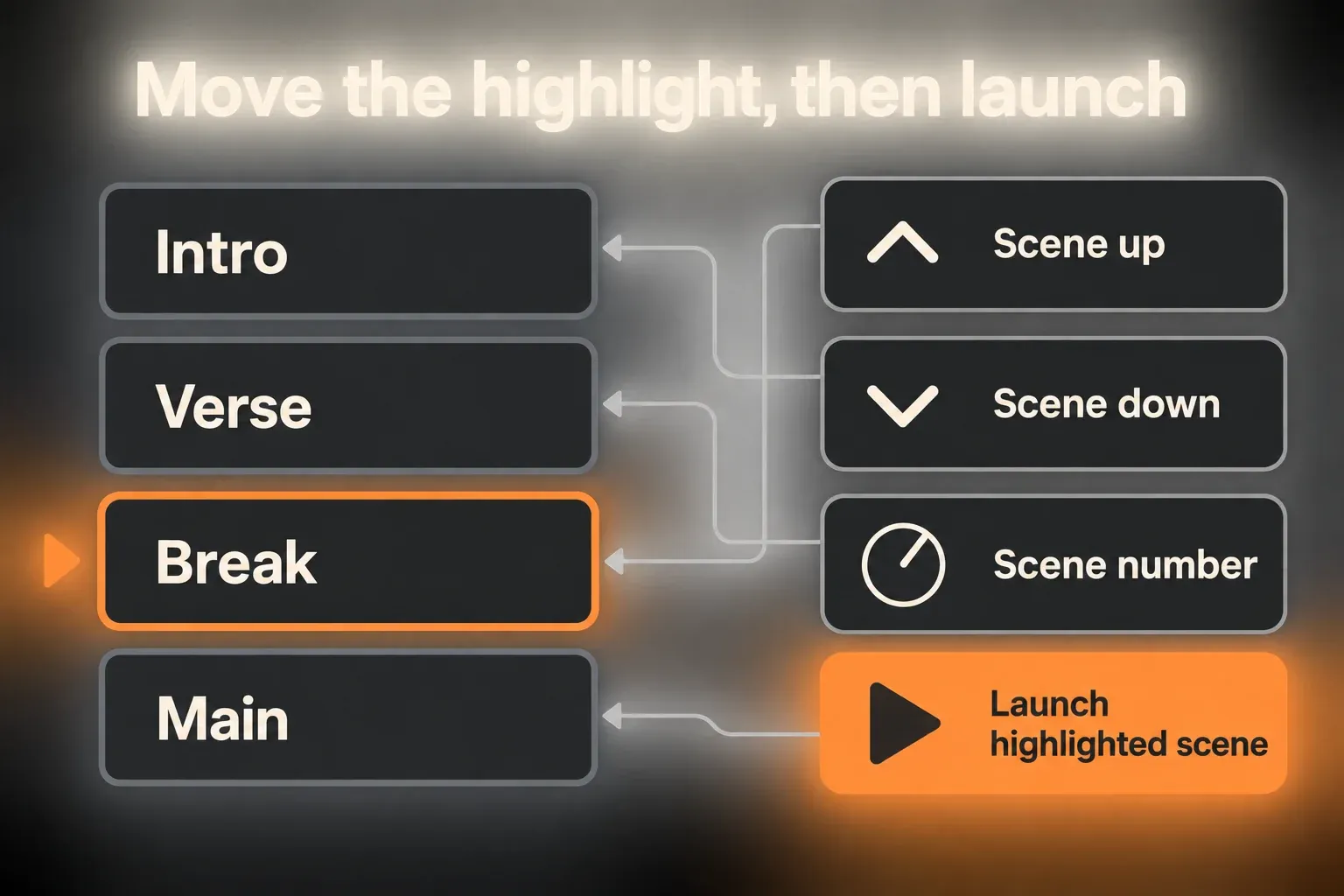
For a long Session Set, map scene up and down, the scene-number selector and launch highlighted scene from the relative navigation strip. Select Next Scene on Launch, in Record, Warp & Launch settings, decides which scene is selected afterwards, so choose whether you want that advance and test repeated presses. The strip also offers cancel triggered scene launch, which cancels a pending launch but does not stop a scene that is already playing.
Use buttons with explicit stage behavior
Check what each button actually sends. A Note On can toggle a switch, while CC-controlled switches follow value and range rules, so changing a pedal from toggle to momentary can change the result. A single note mapped to a continuous parameter toggles between Min and Max. Looper’s multifunction pedal needs a momentary message according to Ableton, but that rule does not carry over to every mute or arm button.
Launch and Stop All belong on clearly separated controls. Stop All Clips is not an output mute, because live monitoring and effect tails can still be heard. When a mute toggles, confirm its real state on screen or through supported feedback, since a pad lit locally on the hardware does not prove that Live received the command.
Avoid focus-dependent Clip View surprises
Ableton warns that mapped Clip View controls affect whichever clip is currently selected, including several selected clips at once. A generic Clip Gain, Transpose or Warp control is risky in performance unless focus and selection are deliberately locked into the workflow. Rack Macros or fixed track and device parameters with bounded ranges are the safer choice.
Give critical commands a fallback
Keep a keyboard and mouse fallback for a failed controller, on a control path independent of that controller and its USB hub. It still relies on the computer responding, so if a freeze or crash has to be recoverable during a show, prepare an independent hardware mute or playback fallback as well. Label the specific route and rehearse it.
There is no need to duplicate every mapping. Duplicate only the critical control path: stop, safe scene selection, launch and the essential output mute. Extra parallel controls only add doubt about the current state.
Run the stage test
- Open the exact show Set after a fresh restart.
- Review the manual Mapping Browser entries and the Control Surface configuration, and back up the Set before removing confirmed obsolete assignments.
- Test continuous endpoints at a low level first, then at a suitable rehearsal level with the full mix.
- Test buttons with single, double and held presses.
- Switch every controller bank used in the performance.
- Reconnect the controller and check focus, state and feedback.
- Run the full setlist while watching for MIDI loops or CPU spikes.
- Carry out each fallback without touching the controller.
Save the working mappings in the performance Set or a template. A separate mapping sheet with the hardware label, MIDI channel and message, destination, range and expected button behavior is worth keeping too, along with the controller preset and script, so a replacement device can be set up the same way.
Resource impact: mapping is cheap; the controlled Set may not be
CPU: a MIDI mapping adds negligible processing compared with the instrument or effect it controls, although a continuous mapping can still expose a heavy device at the worst moment.
RAM: mappings themselves are small; the memory goes to loaded sample instruments, clips and controller scripts.
Disk and Set size: the mapping table adds little storage, while duplicated performance Sets and bounced safety stems add much more.
Lowest-resource safe route: map only the stage-critical controls, limit them to useful ranges and keep a simple fallback for transport and scene launches.
When not to optimize: a dependable mapping is not the thing to remove for resources. If the Set is really overloaded, simplify the device chain it controls.
FAQ
How do I MIDI map controls in Ableton Live?
Enable Remote for the controller’s MIDI input, enter MIDI Map Mode, select an assignable Live control and move or press the hardware control. Then review the assignment, the message and the Min/Max range in the Mapping Browser.
How do I limit a MIDI-mapped parameter range in Ableton?
Open MIDI Map Mode and edit the mapping’s Min and Max values in the Mapping Browser. Keep the smallest musically useful range, and invert Min and Max only when reversed hardware motion is intentional.
Which Ableton takeover mode should I use?
Pick-Up when you want the hardware control to meet the current Live value before taking over, or Value Scaling for a smooth convergence. None responds immediately and can cause abrupt jumps after bank or state changes.
What should I map for an Ableton live performance?
Start with scene navigation, launch highlighted scene, Stop All and the few bounded performance macros the show actually uses. Add guarded mutes or sends after rehearsal, and leave destructive or unbounded controls unmapped by default.
Why did a mapped MIDI key stop playing notes in Ableton?
Live reserves notes that are mapped for remote control for their assigned functions. Use distinct note or CC messages, or separate MIDI channels, for commands. A dedicated playing port helps when Remote is off there and its Track input is set up correctly, but separate ports with Remote enabled on both do not isolate identical messages.
How do I test an Ableton MIDI mapping before a show?
Start at a low listening level and test ranges, bank changes, single, double and held presses, and reconnection, then rehearse with the full Set. Where feedback is supported, check that the hardware lights match Live’s state. Test a keyboard and mouse fallback for controller loss, and an independent route if a computer failure also has to be covered.
