
Short answer: to control Live on a computer, use USB-C and Control Mode. To pair a standalone unit for project transfers, use the local network and the Push label in Live’s browser. A working USB cable says nothing about network pairing, and Wi-Fi can’t stand in for the USB control connection. Start with the path that is actually failing, and don’t wipe Push over an ordinary discovery problem.
Checked September 7, 2026: these checks cover Push 3 computer control, standalone network discovery and the separate case of a unit that won’t boot. Write down which model and mode you’re using, the computer’s OS and the exact Live and Push software versions. “Not connecting” is too broad to pick a safe fix from.
Choose the correct connection route
- Control computer Live: connect to Push’s USB-C port and use Control Mode.
- Use Push as the computer’s audio interface: keep that USB-C connection and select Push in Live’s Audio Settings.
- Attach a class-compliant MIDI controller: use Push’s USB-A host port.
- Transfer standalone Projects: use a shared local network or Push’s hotspot; USB doesn’t move Sets between Push and the computer.
- Use an external audio interface with standalone Push: supported class-compliant devices go into USB-A with Push software 2.3 or later.
- Download updates or authorize a license: follow the standalone network/software workflow; neither is a Control Surface assignment.
Ableton’s connection guide keeps computer USB control apart from the local-network functions. Link and Link Audio are separate jobs, synchronization and audio streaming, and neither one is the normal USB control-surface connection.
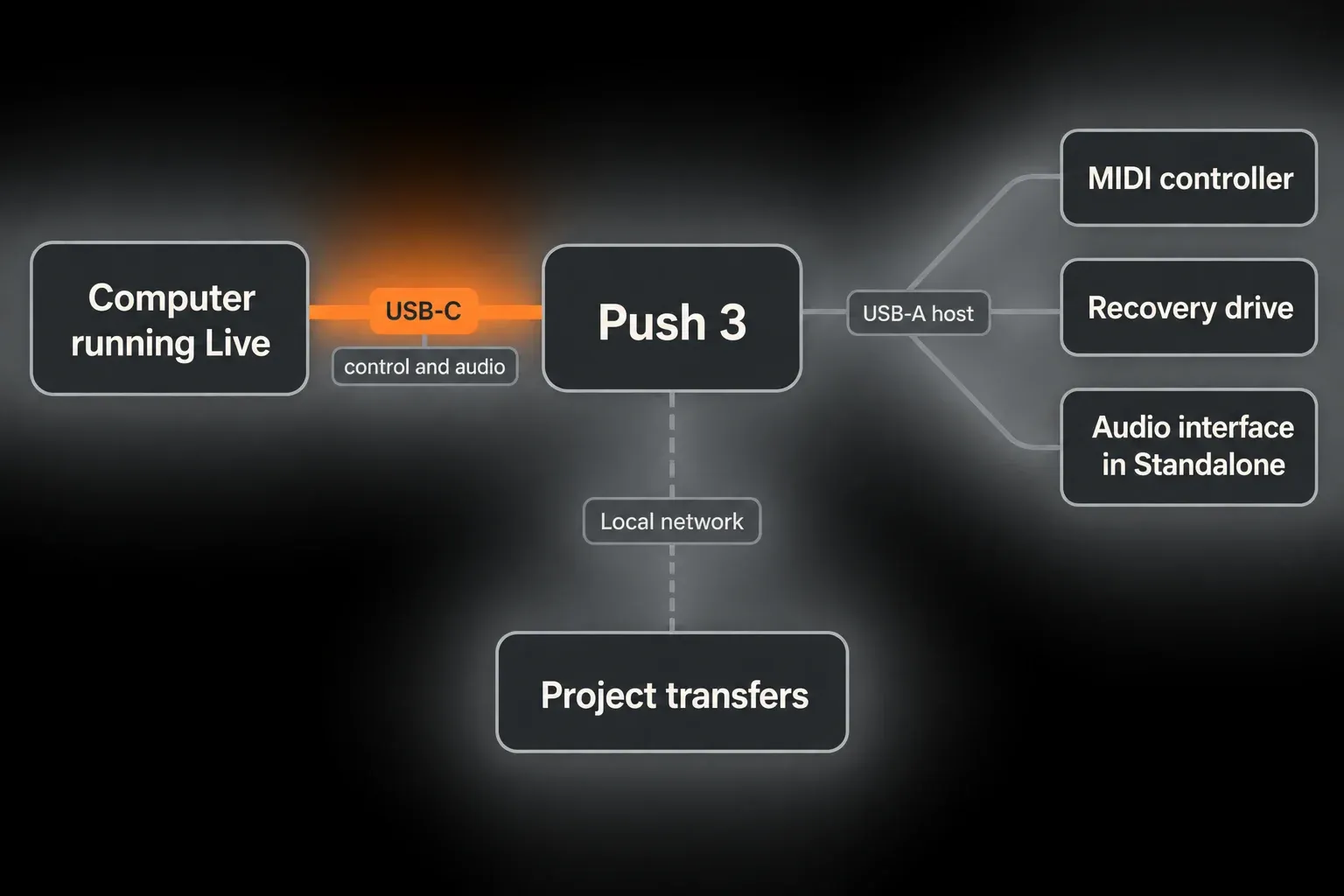
The map above shows which port talks to the computer; it doesn’t list everything USB-A can do. Since Push software 2.3, standalone Push can also use a class-compliant external audio interface. Interfaces that need an extra driver aren’t supported in that role, and none of this makes USB-A the port for controlling computer Live.
Fix a Push 3 USB control failure
- Save your work and quit Live before you change the USB connection.
- Connect Push’s power supply and use its computer-facing USB-C port.
- Try the included data cable directly. Take out optional hubs or docks; if the computer needs an adapter, use one you know carries data.
- Press Power briefly and wait for the normal startup to finish.
- On standalone Push, open Setup → Status and choose Control Live to enter Control Mode.
- Open a supported installed version of Live and test with an empty Set.
- If there is still no connection, try another physical USB port or a known data cable, changing one thing at a time.
All Push 3 models support computer control with Live 11.3 or later, according to Ableton’s setup instructions. That minimum doesn’t promise every later feature on an old build, so run an up-to-date compatible Live version. Power lights on their own don’t prove USB data is reaching the computer.
Do not add Push 3 manually as a Control Surface
Push 3 is detected and configured automatically. Unlike the setup steps for older controllers, it doesn’t appear in Live’s Control Surface chooser for manual selection. While troubleshooting, don’t invent a control-surface row or switch on every Track, Sync and Remote option.
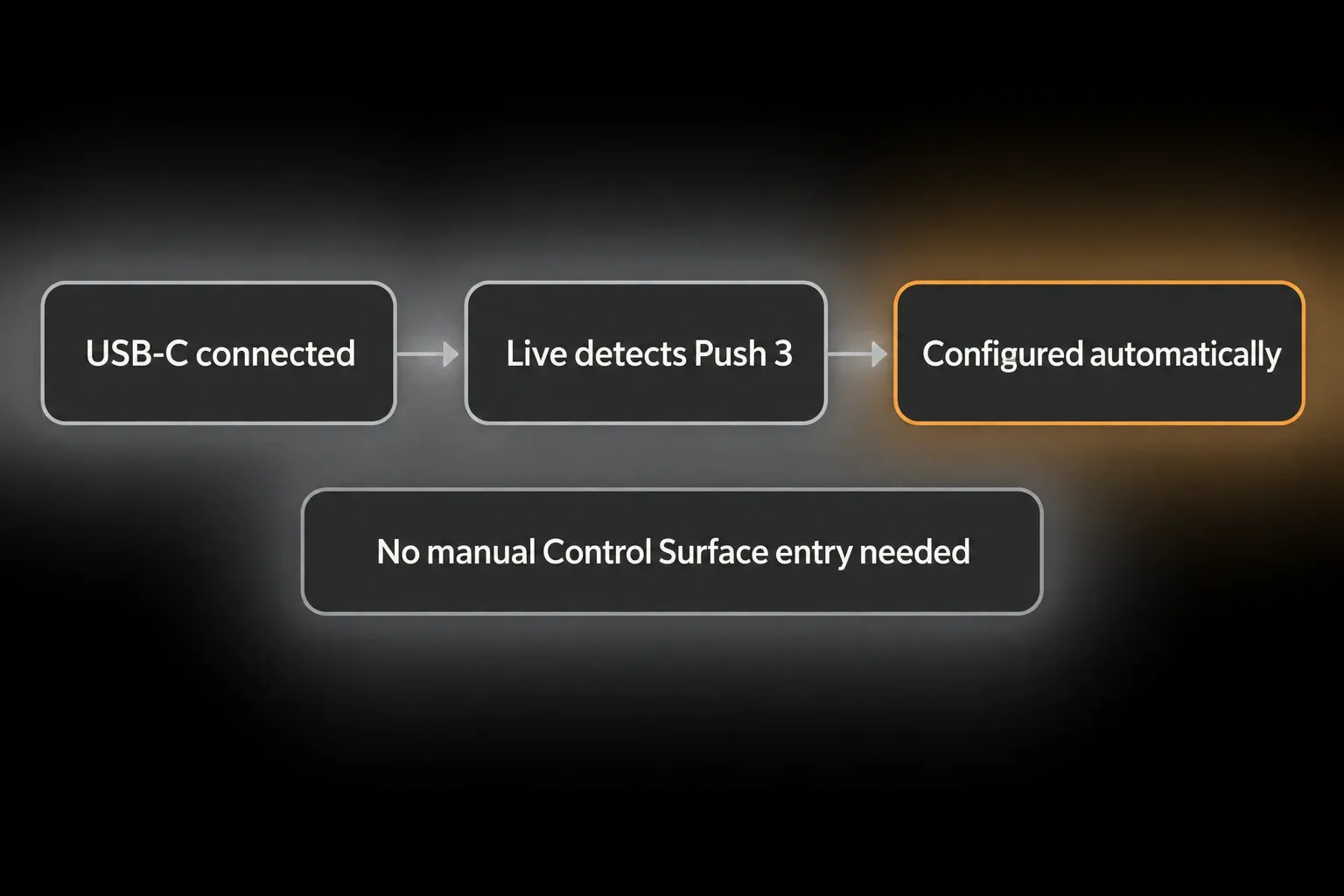
If Live sees other MIDI devices but not Push, the broader MIDI-controller diagnostic can help you test USB enumeration without overriding Push’s automatic configuration.
Update Live before blaming Push firmware
For computer control, Live checks the Push firmware whenever the device connects and installs an update if one is needed. On Windows with Live 11, Ableton documents a specific driver problem: a Live 11.3.x auto-update may not install the Push 3 drivers. In that case, install the current compatible Live 11 installer by hand from your account. It is not a reason to download an unofficial driver pack.
Keep the power connected and let an update finish before you reconnect or restart. Note the versions before and after, and whether the failure affects Control Mode, Standalone Mode or both. Standalone software updates go through Push’s own software workflow, which is a different operation from Live’s routine firmware check.
Fix Push 3 standalone network pairing
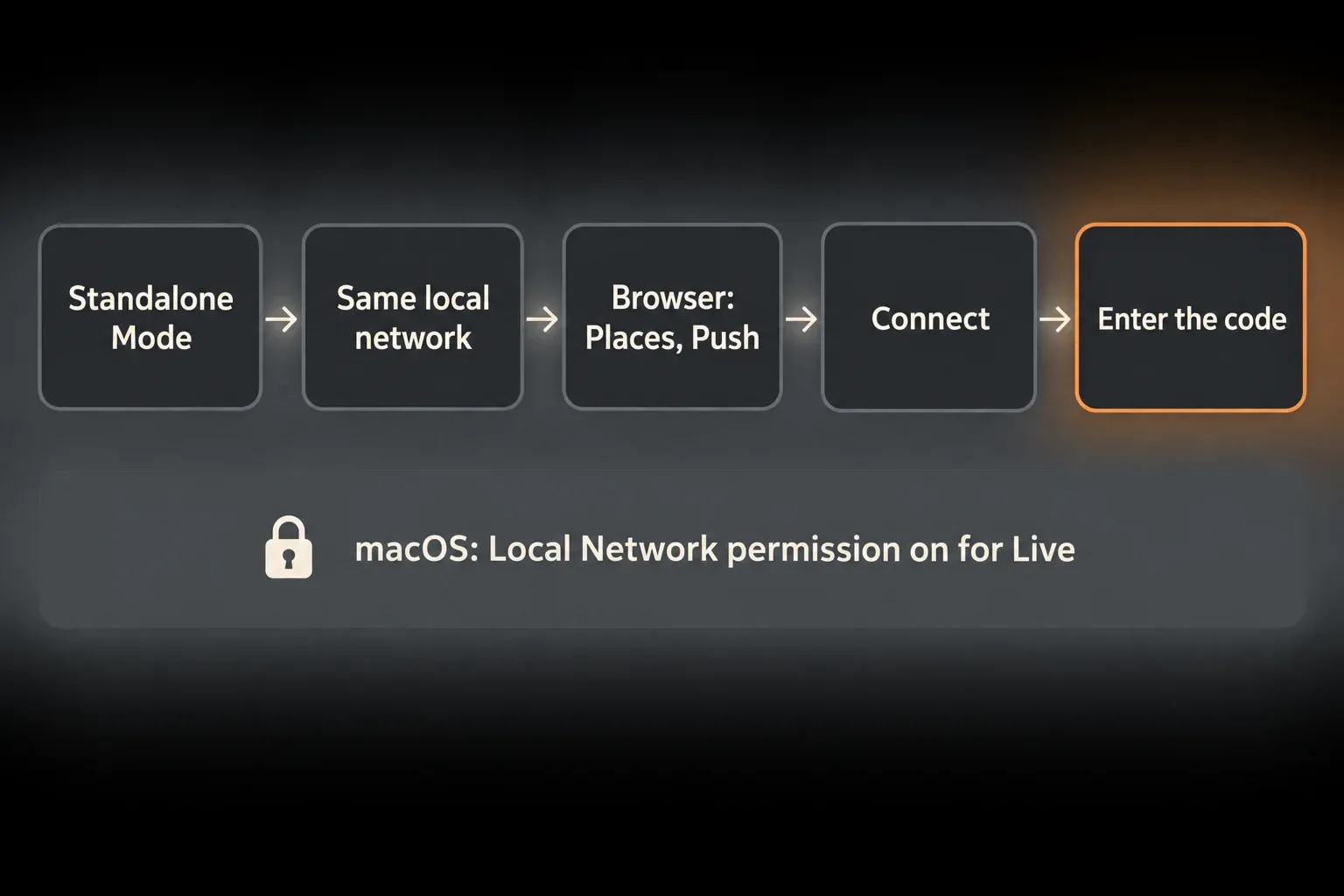
- Put Push in Standalone Mode and connect it and the computer to the same local network.
- In Live, check Settings → Library → Show Push if the Push label is missing.
- Open Browser → Places → Push and find the unit whose name matches Setup → Status on Push.
- Choose Connect and type the six-digit code shown on that Push into Live.
- Confirm the unit’s folders appear. If they don’t, note which stage goes missing first: the label, the device name, the code prompt or the folders.
Ableton’s Project pairing instructions use this Live-browser connection. If discovery fails, check the network and permissions below, then restart Live and Push. Try another trusted network, a phone hotspot or Push’s own hotspot, and restart a shared router only when that won’t cut off other people. WPA3 needs Push software 2.1 or later. Push’s hotspot handles local transfers but gives no internet access.
Browser authorization is a separate step from pairing Projects. From Push’s Setup → Software → Authorize, type the complete address the device shows, including its protocol and any numbered hostname. The standalone setup guide uses http://push.local/authorize and a six-digit code. Enter the address exactly as Push displays it rather than guessing a homepage, and don’t take a working authorization page as proof that a Project transfer went through.
Check security software without disabling protection permanently
Ableton’s network troubleshooting guide names firewall rules, UDP restrictions and network filters such as Little Snitch as possible causes. Look at the relevant app or local-network rule before you change it. Try one narrow, reversible exception at a time, remove it if it doesn’t help, and never leave the firewall switched off.
On macOS Sequoia, check System Settings → Privacy & Security → Local Network → Ableton Live 12. On other macOS versions, see whether that permission is offered for the installed Live application. Sharing a Wi-Fi name doesn’t prove the devices can reach each other, because guest-network isolation can block discovery. If a trusted hotspot works and the original network doesn’t, look into that network’s restrictions; the comparison doesn’t pin down one particular router fault.
Separate control from audio-interface problems
Test pad control and audio separately. A device can control Live even while a different audio interface is selected. In one empty Set, check:
- Can Push select a track and control a loaded device or launch a clip?
- Does Push show up in the computer’s audio-device list when you test its USB audio interface?
- Does the chosen interface play audio from a track you know works?
- After noting the current device choice, does switching to another known working audio device isolate the audio problem while pad control stays connected?
If control works, follow the remaining symptom: crackles and dropouts need a different check from late monitoring. Neither symptom on its own justifies reinstalling Push firmware.
When recovery mode is appropriate
Recovery is for a standalone unit that can’t boot normally. If the pads keep flashing after an update, first follow Ableton’s backup-software startup procedure, and only if that fails move to the recovery guide. Don’t run this startup sequence while a normal update is still in progress.
- Wi-Fi recovery: Ableton documents a software reinstall that keeps the internal SSD data. Its stated prerequisites include an earlier Wi-Fi connection and automatic update to the latest firmware, and it isn’t guaranteed to fix every fault.
- USB recovery image: this deletes all data on Push’s internal drive and overwrites the chosen USB flash drive. It is not an ordinary firmware update.
Use the current recovery instructions for the right package and method. Back up the Projects, samples and presets you can still reach. If unique work is locked inside, contact Ableton Support before any erase-based recovery method; a backup warning can’t retrieve files from a unit you can’t open. A Push that boots but doesn’t appear in computer Live belongs back in the USB/Control Mode checks above.
Keep the diagnostic Set small
Use an empty Set for connection checks and one small instrument when testing pads and audio. There’s no need to load the full performance Set or copy large libraries just to prove discovery. Keep backups intact and leave storage free for the update packages you need. Once pairing works, copy one test Project across and reopen it, because folders showing up doesn’t prove every sample or device in a production Set made it.
What a successful connection should let you do
For USB control, Push should operate the intended Live Set. For project pairing, the right unit’s folders should open and a test transfer should finish. For audio, the selected route should be audible. Note which result is still missing, instead of repeating all three tests or assuming one working connection proves the others.
Once the connection is reliable, use the performance and control hub to prepare mapping, cue routing and a performance Set. Troubleshooting ends with a route that works; getting ready for a show still needs its own rehearsal.
FAQ
Why is Push 3 not showing as a Control Surface in Live?
That’s expected. Push 3 is detected and configured automatically and doesn’t need a manually selected Control Surface entry.
Which USB port connects Push 3 to the computer?
Use Push’s USB-C port for computer control and for its computer audio-interface connection. USB-A is the host port for supported peripherals: class-compliant MIDI devices, recovery media and, in Standalone Mode with Push software 2.3 or later, a class-compliant external audio interface.
Does Push 3 standalone need Control Mode to control Live?
Yes. Open Setup → Status on Push, switch from Standalone Mode to Control Mode, then open Live on the computer.
Why can my computer not find Push 3 standalone on Wi-Fi?
Use Standalone Mode on the same local network, then check Show Push in Live’s Library Settings and Browser → Places → Push. Match the unit name, click Connect and enter its six-digit code. If discovery still fails, look at local-network permissions and firewall restrictions; a trusted hotspot gives you a comparison, not a guaranteed fix.
Will Push 3 USB recovery delete my data?
Yes. The USB recovery-image method erases Push’s internal drive and overwrites the flash drive. The separate Wi-Fi method is documented as keeping SSD data when its prerequisites are met. Back up the work you can reach first, and ask Support before a destructive recovery if important files are out of reach.
Does connecting Push 3 use much CPU or RAM?
You don’t need a large Set to check discovery or pad control. Start with an empty Set, then add one small instrument for an audio test. Resource use depends on the loaded instruments, samples, effects and audio settings; a connection test is not a CPU or RAM benchmark.
