
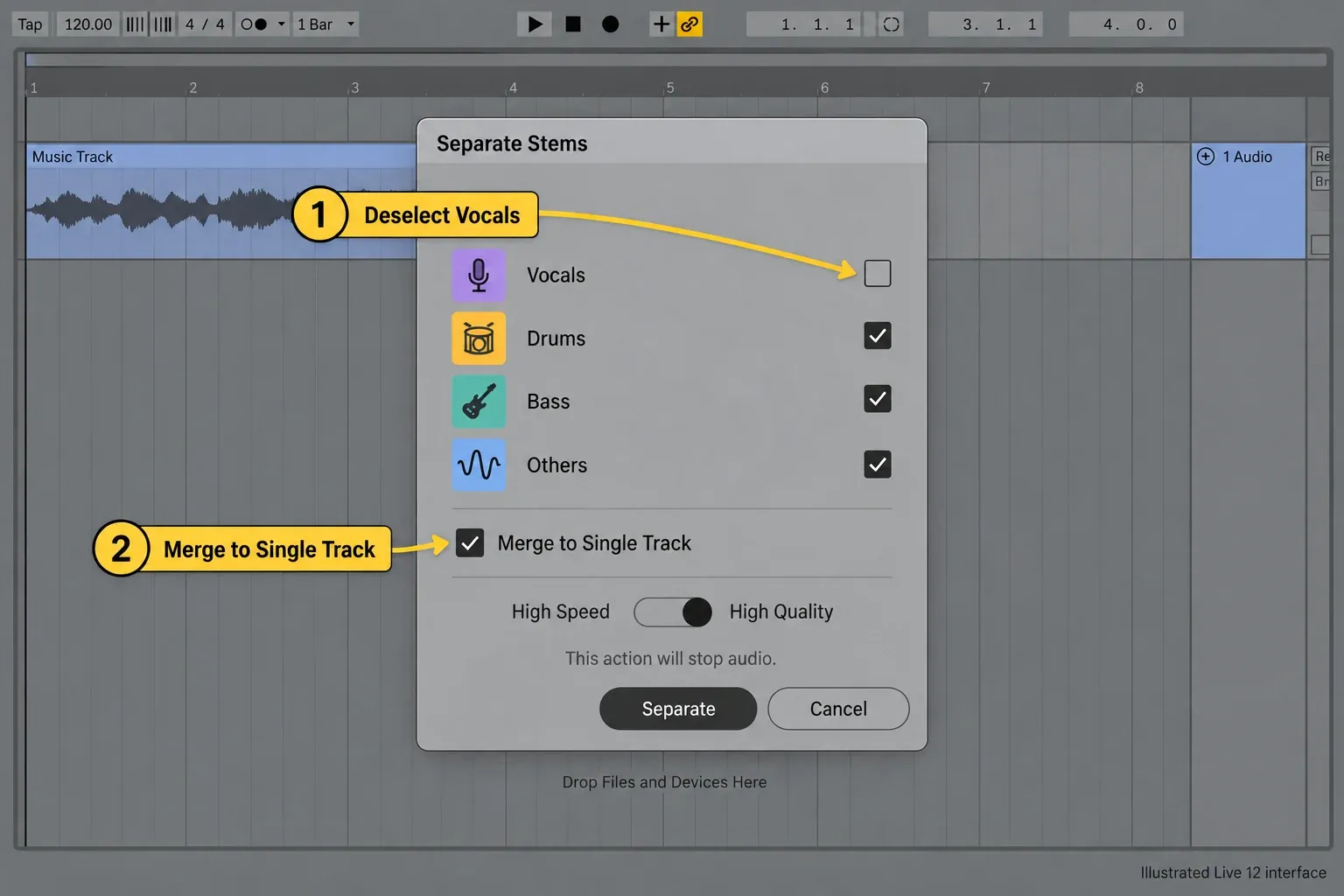
Short answer: Ableton Live can separate a mono or stereo audio file into Vocals, Drums, Bass and Others. The feature requires Live 12 Suite and first appeared in Live 12.3. In Live 12.4, you can also process only a selected Arrangement range or combine two or three chosen components into one new track. For an instrumental, select Drums, Bass and Others, leave Vocals off, and enable Merge to Single Track.
Scope checked September 17, 2026: this guide follows the current Live 12 manual and Live 12.4 release notes. Stem Separation works locally, so the process does not require an internet connection or a separate service. It analyzes mixed audio; it does not recover the original multitrack recording, and clean isolation is never guaranteed.
Check the edition and version before looking for the command
Stem Separation is a Suite-only feature. Ableton’s current edition comparison excludes it from Intro and Standard, while the official FAQ also excludes Lite. If you own Live 12 Standard, updating the application will not add the command; the edition is the limiting factor. The Standard versus Suite guide can help if Stem Separation is the feature driving an upgrade decision.
| Requirement | What you need |
|---|---|
| Edition | Live 12 Suite |
| Minimum feature version | Live 12.3 |
| Selected-range separation | Live 12.4 or later |
| Merge to Single Track | Live 12.4 or later, with two or three components selected |
| Source | A mono or stereo audio file or audio clip |
Choose the result before you separate anything
The four component choices are Vocals, Drums, Bass and Others. “Others” is the remainder that Live does not classify as the first three categories, so it can contain guitars, keys, strings, effects and mixed material. It is not a dedicated melody or instrument stem.
| Result you want | Select | Merge? |
|---|---|---|
| Vocal only | Vocals | No |
| Drums only | Drums | No |
| Bass only | Bass | No |
| Several editable parts | Any two, three or all four components | Leave Merge off |
| Instrumental without vocals | Drums, Bass and Others | Enable Merge to Single Track |
| Vocal plus drums in one clip | Vocals and Drums | Enable Merge to Single Track |
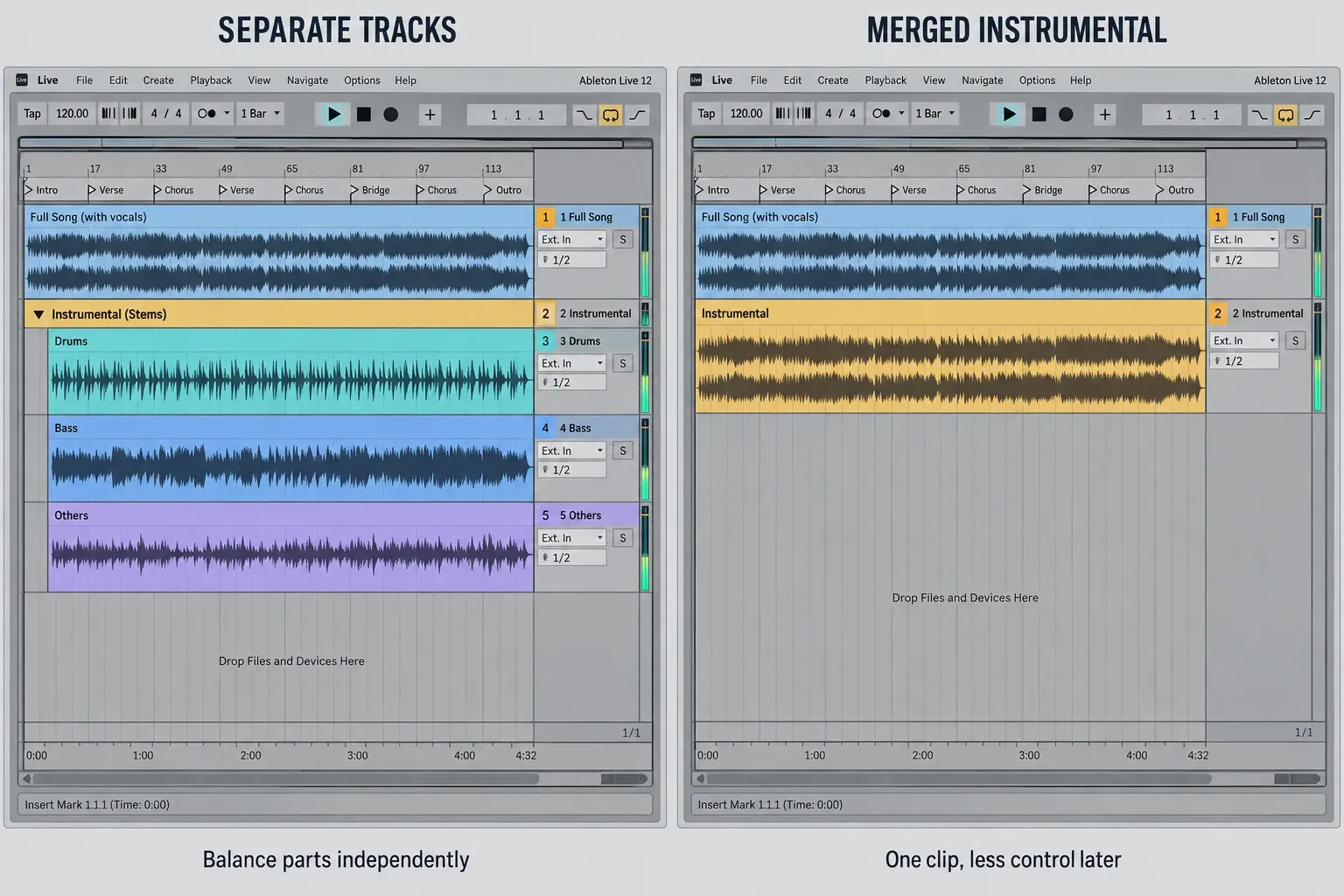
If you need independent control later, keep the components separate. A merged result is convenient for one instrumental clip, but it removes the immediate ability to balance Drums, Bass and Others against each other.
Separate a full audio file or clip
- Select an audio file in Live’s browser, or select an audio clip in Session or Arrangement View.
- Open the context menu and choose Separate Stems to New Audio Tracks. The command is also available from the Create menu in supported contexts.
- Enable Vocals, Drums, Bass and/or Others according to the result you need.
- Leave Merge to Single Track off if you want separate tracks. Enable it only when you want two or three selected components combined.
- Choose High Speed or High Quality.
- Select Separate. Playback stops while the process begins.
The current Live 12 Stem Separation manual says that multiple results are placed on individual audio tracks inside a new Group Track. If you request only one component, Live creates one new track instead of a group. The source clip is deactivated to prevent doubled playback; select it and press 0 if you need to reactivate it.
Create an instrumental with Merge to Single Track
In Live 12.4 or later, the shortest route to one instrumental clip is:
- Select Drums, Bass and Others.
- Leave Vocals unselected.
- Enable Merge to Single Track.
- Choose the quality mode and run the separation.
Live performs the separation and then combines the three selected components into a new audio clip. Ableton gives this exact use case in the Live 12.4 release notes. The result is a derived instrumental, not the original pre-vocal mix. Vocal ambience, shared reverb and overlapping frequencies can remain in the other components.
If Merge to Single Track is greyed out, count the enabled components. Live permits merging two or three. It disables the checkbox for one component because there is nothing to combine, and for all four because that would reconstruct the complete separated mixture.
Separate only part of a clip in Arrangement View
Live 12.4 added a direct selected-range workflow. Make a time selection inside an Arrangement audio clip, open its context menu, and choose Separate Stems for Time Selection. Live splits the clip at the selection edges and creates stems only for that range.
This is the better route when you need one chorus, break or vocal phrase. It avoids processing unused audio and keeps the result aligned with the selected section. For a normal clip separation, Live also follows the audible region defined by the clip’s start and end markers. A warped loop can further limit processing to the active region described in the manual.
Choose High Speed or High Quality by purpose
| Mode | How it works | Use it when |
|---|---|---|
| High Speed | Separates all requested parts in a single pass | You need a draft, a quick edit, have limited memory, or are working on Push standalone |
| High Quality | Uses dedicated passes for Vocals, Drums and Bass, then derives Others from the remainder | Isolation matters enough to justify longer processing |
Ableton describes High Quality as more accurate by Signal-to-Distortion Ratio, but that does not mean every source will sound clean. Dense reverbs, doubled vocals, distorted bass, cymbals and harmonically rich synths can cross category boundaries. My recommendation is to use High Speed to check whether the source is separable enough for the intended edit, then run High Quality only when the draft reveals a useful result that needs better isolation.
To shorten High Quality processing, request only the components you need. There is one important exception: including Others still requires Live to process the remaining categories so it can calculate that remainder. If the target is only Vocals, leave Drums, Bass and Others off.
Understand what Live creates
For clip-based separation, Live preserves more Set structure than a simple file splitter:
- each requested component becomes a clip on its own audio track;
- multiple component tracks sit in a new Group Track;
- source-track effects are placed on the Group Track rather than rendered into each separated file;
- track automation is copied to the Group Track;
- clip envelope automation and modulation are copied to the stem clips;
- the source clip is deactivated to prevent doubled output.
The generated files are stored in Current Project → Samples → Processed → Stems. The current manual states that they use the file type selected in Record, Warp & Launch Settings, a 44.1 kHz sample rate, and the same bit depth as the source material. The bit-depth behavior changed in Live 12.4 and is confirmed by its release notes.
After separation, the clips behave like other audio in Live. You can edit, process and warp the audio, but make timing changes only when the musical use requires them. If you later need delivery files from a multitrack Set, follow the separate export-stems workflow.
Fix a missing command or stalled process
Separate Stems is not showing
- Confirm the edition: the command requires Suite. Intro, Standard and Lite do not include it.
- Confirm the version: update Suite to at least 12.3. Use 12.4 or later for selected-range separation and Merge to Single Track.
- Confirm the source: select a mono or stereo audio file or audio clip. Stem Separation is not an operation for a MIDI clip.
- Confirm the context: check the audio file in the browser or the audio clip in Session or Arrangement, then open the context or Create menu.
Merge to Single Track is disabled or absent
First confirm Live 12.4 or later. Then select exactly two or three of Vocals, Drums, Bass and Others. The option is intentionally unavailable for one or all four.
Live says “Waiting for decoding to finish”
Live must analyze and, when needed, decode the audio before separation. The progress count can cover decoding plus one or more separation passes. Long clips and High Quality work can make this stage noticeably longer. Wait for the queued tasks to finish; if the job is unnecessarily large, cancel it and process only the audible section you need.
Processing is slow
Apple-silicon Macs normally accelerate Stem Separation with the GPU. Intel Macs and Windows systems use the CPU. Ableton documented a macOS 26.1 compatibility issue that forced Apple-silicon machines onto the CPU; the Live 12.4 release notes say GPU processing was restored on macOS 26.3. Keep Live and macOS current before treating slower processing as a permanent hardware limit.
Eight gigabytes of RAM meets the stated minimum, but Ableton warns that it can be slow and recommends 16 GB for frequent High Quality work. Close memory-heavy applications, shorten the clip, and avoid selecting Others when you do not need it. Push standalone supports High Speed mode only.
Live reports insufficient disk space or crashes
Separated files are written into the Project, so the job needs free storage in addition to working memory. Ableton’s troubleshooting guidance asks for at least 2 GB free for a crash check and recommends keeping roughly 10–20% of the internal drive free for normal Live operation. On Apple silicon, the local separation models also add roughly 2 GB to the installed size of Live.
If a crash repeats, try High Speed, process a shorter clip, and test in a simple Set without third-party plug-ins. That narrows the failure without pretending the plug-ins caused it. Use Ableton Support if the same failure remains reproducible.
Judge leakage against the intended use
Stem separation is an estimation process. A hi-hat can leak into Others; a chorused synth can appear partly in Vocals; shared reverb can remain across several outputs. Low-bitrate MP3 files and low-sample-rate sources can give the model less useful information. High Quality can improve separation, but it cannot recreate tracks that no longer exist independently in the mix.
Listen to the result in the role it will serve. A vocal for a dense remix may tolerate accompaniment residue that would be obvious in an exposed acapella. An instrumental for practice may be useful even with faint vocal ambience. Keep the original clip available and compare at matched loudness before building a larger edit around the separated output.
Resource impact
- CPU/GPU: Apple-silicon Macs normally use GPU acceleration; Intel Macs and Windows use CPU processing. High Quality requires several passes.
- RAM: 8 GB is the stated minimum. Ableton recommends 16 GB for frequent High Quality separation.
- Disk: Apple-silicon models add about 2 GB to the Live installation. Every separation also creates audio in the Project’s Stems folder.
- Lowest-resource safe route: process only the audible range, choose only the needed components, and preview with High Speed.
- When not to optimize: do not choose a faster mode if audible leakage prevents the intended use. Compare High Quality on the shortest representative section first.
Do not confuse three different Ableton tasks
| Task | Input | Output |
|---|---|---|
| Stem Separation | One mixed audio file | Estimated Vocals, Drums, Bass and Others audio |
| Audio to MIDI | Audio containing rhythm, melody or harmony | New MIDI notes; it does not isolate the original sound |
| Export stems | An existing multitrack Live Set | Rendered tracks or groups for delivery |
If you want to manipulate the separated sound as audio, stay with Stem Separation. If you need editable notes to drive another instrument, use Audio to MIDI. If the session already contains separate tracks and the recipient needs files, export those tracks or groups. The beats, MIDI and sampling hub connects these workflows without treating them as interchangeable.
FAQ
Does Ableton Live have stem separation?
Yes. Stem Separation is included in Live 12 Suite starting with version 12.3. It is not included in Live Intro, Standard or Lite.
How do I remove vocals and make an instrumental in Ableton?
In Live 12.4 or later, select Drums, Bass and Others, leave Vocals unselected, enable Merge to Single Track, and run the separation. The result may retain vocal ambience or other leakage because it is derived from the mixed recording.
Why is Ableton Stem Separation not showing?
The most common causes are using an edition other than Suite, running a version earlier than 12.3, or selecting MIDI rather than an audio file or clip. Merge and selected-range commands require Live 12.4 or later.
What is the difference between High Speed and High Quality?
High Speed separates the requested parts in one pass. High Quality uses dedicated passes for Vocals, Drums and Bass before deriving Others, which takes longer and is designed for more accurate isolation.
Where does Ableton save separated stems?
Live stores the generated audio in the Current Project folder under Samples, Processed, then Stems. The current manual specifies 44.1 kHz and the same bit depth as the source material.
Can Ableton separate only part of a song?
Yes in Live 12.4 or later. Make a time selection inside an Arrangement audio clip and choose Separate Stems for Time Selection. Normal clip separation also follows the audible region set by the clip’s start and end markers.
