
Short answer: select an isolated audio clip, choose Convert Drums, Melody or Harmony to New MIDI Track from Create or the clip's context menu, and treat the new MIDI as a first transcription. Compare it with the source before quantizing: delete false detections, add missing attacks, fix octaves and note lengths, then choose the instrument.
The converter follows the source it is designed to hear. Drums looks for unpitched percussion events. Melody expects one pitched note at a time. Harmony tries to identify simultaneous pitches. Choosing from the musical texture matters more than choosing the command whose name sounds closest to your goal.
Check the edition before looking for a missing command
The current Live 12 edition comparison lists Audio to MIDI and audio slicing in Standard and Suite, not Intro. Live Lite also does not include the full Audio to MIDI feature. If the commands are absent in Lite or Intro, rescanning plug-ins and resetting preferences will not add them.
Edition contents can change, so verify Ableton's table on the day of an upgrade. This guide covers the current Standard and Suite commands.
Choose between four audio-to-MIDI routes
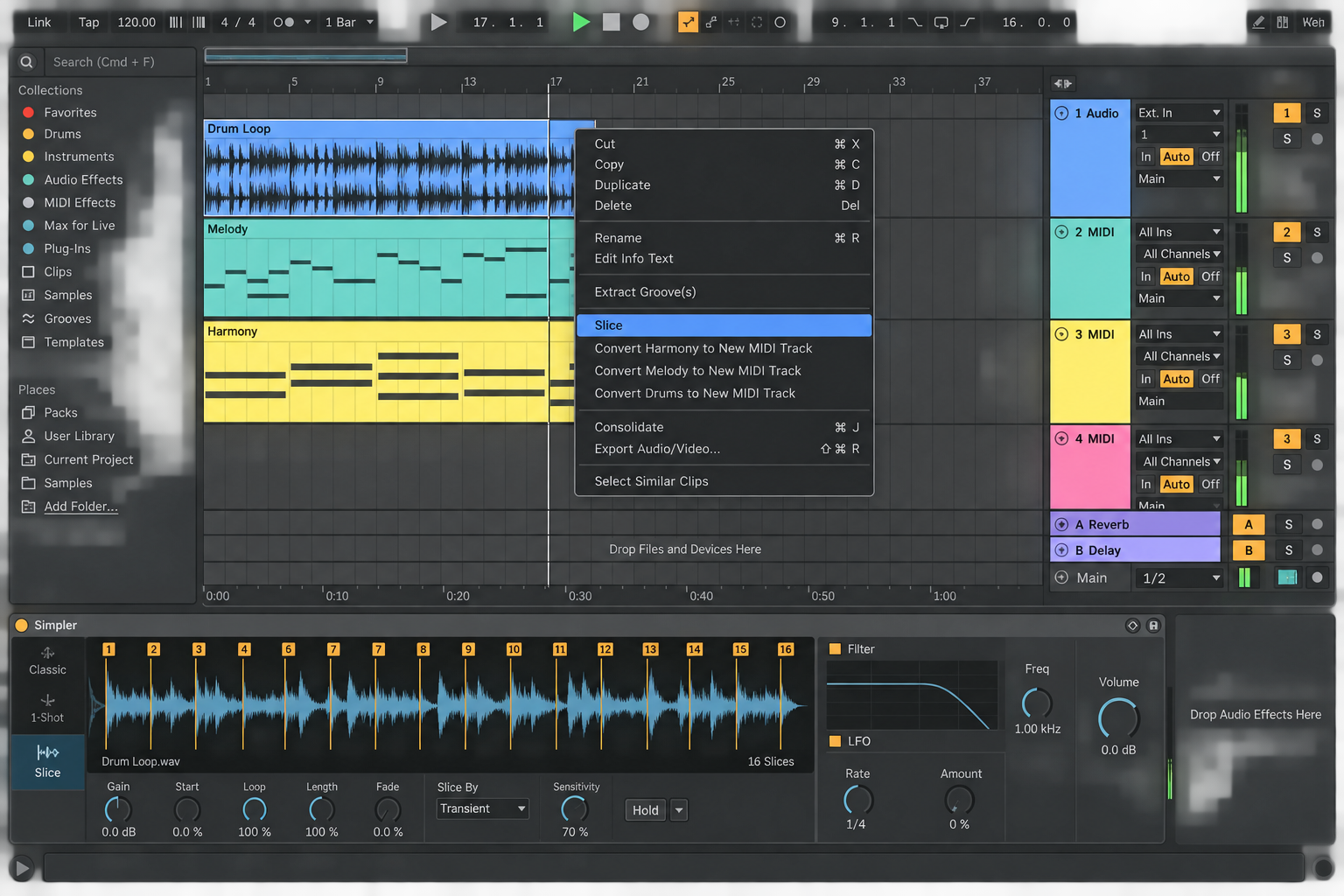
When an audio clip is selected, Live exposes four related commands. The current Live 12 Audio to MIDI manual separates slicing from musical conversion:
| Source | Command | New MIDI represents | Original sound |
|---|---|---|---|
| Drum loop to resequence as samples | Slice to New MIDI Track | Slice triggers in order | Preserved in Simplers |
| Unpitched drum or percussion performance | Convert Drums | Detected kick, snare and hihat events | Replaced by Drum Rack |
| Vocal, whistle, bass or solo instrument | Convert Melody | One pitch at a time | Replaced by preview Rack |
| Piano, guitar chords or other polyphony | Convert Harmony | Simultaneous detected pitches | Replaced by piano Rack |
Prepare a short source that one algorithm can understand
Conversion quality is usually won before the command runs. Ableton recommends clear attacks, isolated instruments and uncompressed high-quality audio such as WAV or AIFF. Lossy MP3 can produce unpredictable results, especially when the bitrate is low.
- Crop to the useful phrase rather than converting a full arrangement.
- Choose the cleanest available stem or isolated recording.
- Reduce long reverb or delay tails when a dry source exists.
- Confirm the clip's first downbeat and timing map.
- Add, move or delete transient markers where attacks are missing or false.
Live uses transient markers to divide notes in the converted MIDI clip. The Ableton warping workflow explains how to validate the clip before conversion. Do not quantize a bad timing map and then ask the converter to explain it.
Convert Drums: detect the rhythm before choosing sounds
Convert Drums extracts rhythms from unpitched percussive audio and attempts to identify kick, snare and hihat events. It creates a new MIDI track with a preloaded Drum Rack. The mapping is a useful audition, not proof that every hit was classified correctly.
- Use an unaccompanied break, beatbox take or surface-tapping recording.
- Correct transient markers for the attacks that should become notes.
- Run Convert Drums to New MIDI Track.
- Solo source and result from the same bar.
- Delete notes created by bleed or reverb before adding missing hits.
- Replace the preview sounds only after the pattern is correct.
A full mix can make bass attacks look like kicks and bright instruments look like hats. If the goal is to keep the break's sound and only rearrange it, Slice to New MIDI Track is the better route. If the goal is an editable drum pattern that can drive new samples, Convert Drums is correct. The Drum Rack guide covers pad, chain and choke setup after transcription.
Convert Melody: one pitch at a time
Convert Melody identifies pitches in monophonic audio. Suitable sources include a clean vocal line, whistle, bass, single-note guitar or another solo instrument. Chords, double-stops and overlapping harmony violate the single-note assumption.
Live creates a MIDI track with an Instrument Rack that can move between a synth and electric-piano timbre for preview. Replace it after verifying pitches and rhythm.
Check octave errors first. Then remove short false notes between intended pitches, especially around vibrato, slides and noisy consonants. A legato vocal phrase may produce overlapping or fragmented notes because attacks are less distinct. Edit the result by ear against the source, not solely from the piano roll.
Convert Harmony: expect the most cleanup
Convert Harmony identifies simultaneous pitches in polyphonic audio and creates a piano Rack for preview. A clean piano or guitar chord recording is a reasonable candidate. A mastered song contains drums, bass, vocals, effects and overlapping overtones; its output may be useful for ideas but is not a reliable score.
- Convert a short progression.
- Listen chord by chord with the source.
- Delete low or high notes that come from overtones rather than the harmony.
- Correct inversions only when the source confirms them.
- Simplify repeated or overlapping notes before changing voicing.
Community results are mixed because polyphonic detection is a harder problem and source quality varies. Use Harmony to reveal a progression or seed a new voicing. Do not present the output as an exact transcription without checking every chord.
Slice to MIDI keeps the audio; Convert commands do not
Slice to New MIDI Track divides the audio by transients, Warp Markers or a chosen beat resolution. Live creates a MIDI clip, a Drum Rack and one Simpler chain per slice, up to the Rack's 128-chain limit. Each MIDI note triggers a portion of the original sound.
Convert Drums, Melody and Harmony analyze musical content. Their MIDI notes trigger a new instrument rather than the original clip. That distinction decides the route:
- keep the singer's timbre and resequence syllables: Slice;
- use the sung notes to play a synth: Convert Melody;
- keep the exact drum-loop texture and rearrange hits: Slice;
- replace the break with a new kit: Convert Drums.
Repair the transcription in the right order
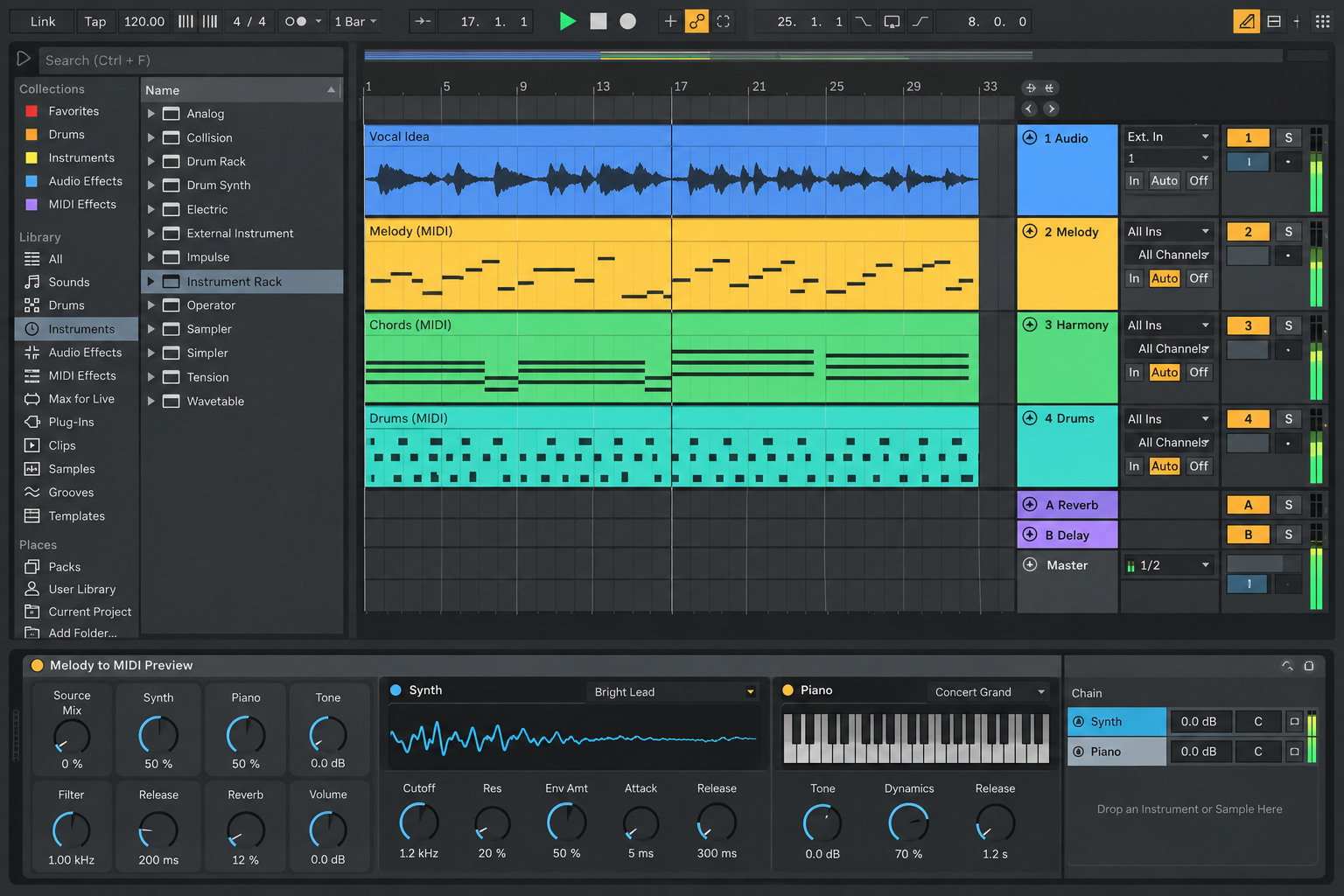
- Delete false notes. Extra events hide the actual timing and harmony.
- Add missing attacks. Use the source transient or pitch change as evidence.
- Correct octave and pitch. Compare at slow playback if needed.
- Fix duration. Remove overlaps that retrigger or choke the chosen instrument.
- Correct timing last. Use the partial Quantize process only when timing is genuinely wrong.
- Choose the instrument. Judge the transcription with a sound whose attack and range match the part.
After cleanup, the new clip can use the MIDI Transformations and Generators like any other MIDI. Preserve one untransformed transcription first so a creative operation does not erase the evidence.
Why conversion creates the wrong notes
- Several instruments overlap: isolate a stem or choose a shorter exposed phrase.
- Notes swell instead of attack: add or correct transient markers, then expect manual pitch cleanup.
- Reverb creates extra events: use a dry source if available or delete tail detections first.
- The source is MP3: find WAV/AIFF or a higher-bitrate master when possible.
- The wrong converter was chosen: use Melody for monophonic pitches, Harmony for polyphony and Drums for unpitched percussion.
- The goal was original-sound resequencing: use Slice rather than a Convert command.
Resource impact: MIDI is small; the replacement instrument decides the cost
- CPU: the conversion is a bounded analysis task. Afterward, MIDI notes are lightweight; the replacement instrument and effects determine ongoing processor load.
- RAM: a stock preview Rack can be modest, while a multisampled replacement may use far more memory than the source clip.
- Disk and Set size: MIDI transcription is small. Slice creates device references to source slices; the original audio remains part of the project and must stay available.
- Lowest-resource safe route: convert a short isolated phrase, use the stock preview instrument, mute rather than delete the source, and keep only the approved transcription.
- When not to optimize: do not delete or consolidate the source merely because MIDI exists. Keep it until pitch, timing, dynamics and instrument choice are approved.
A conversion pass you can verify
- Prepare the source. Crop to the useful phrase, isolate one musical role, verify timing and clean transient markers.
- Choose the matching converter. Use Drums for unpitched percussion, Melody for one pitch at a time, and Harmony for simultaneous pitches.
- Compare before editing. Solo the source and MIDI result at matching positions, then mark missing attacks, false notes and octave errors.
- Repair and arrange. Delete false detections first, correct pitch and duration, then apply restrained timing correction and choose the final instrument.
This page owns transcription from audio into MIDI and the boundary with slicing. Related sampling, drums and MIDI workflows are organized in the MIDI and sampling hub.
FAQ
How do I convert audio to MIDI in Ableton Live 12?
Select an audio clip, open the Create menu or the clip's context menu, and choose Convert Drums, Convert Melody or Convert Harmony to New MIDI Track. Choose the command that matches the source, then edit the new MIDI clip while comparing it with the audio.
Which Ableton editions include Audio to MIDI?
The current Live 12 comparison lists Audio to MIDI in Standard and Suite, not Intro. Live Lite also does not include the full Audio to MIDI feature. Check Ableton's current edition comparison before upgrading because edition contents can change.
Should I use Convert Melody or Convert Harmony?
Use Melody when one pitched note plays at a time, such as a vocal, whistle, bass or solo instrument. Use Harmony for polyphonic material with simultaneous pitches, such as chords. A dense full mix is a poor source for either command.
Why is Ableton Audio to MIDI inaccurate?
Common causes are overlapping instruments, weak or swelling attacks, noise, reverb, lossy audio and inaccurate transient markers. Isolate the part, use high-quality WAV or AIFF when possible, clean the playing region and correct transient markers before converting.
What is the difference between Slice to New MIDI Track and Convert Drums?
Slice divides the original audio into time segments and maps those samples across a Drum Rack, so MIDI triggers the source slices. Convert Drums analyzes percussion events and creates MIDI notes that trigger a newly loaded Drum Rack; it does not preserve the original sound.
Does converting audio to MIDI save CPU or RAM?
Conversion itself creates lightweight MIDI, but the new instrument determines CPU and RAM use. A small stock instrument may be cheaper than a warped audio chain, while a large sampled instrument may use more memory. Keep the source muted until the transcription is approved.
