
To make your first song in Ableton Live, start with four MIDI tracks: drums, bass, chords and lead. The exercise below gives you a drum pattern and the notes for an eight-bar loop, then turns that loop into a 24-bar intro, main section and outro. At 120 BPM in 4/4 that comes to 48 seconds before any effect tail. Export it and listen outside Live before you add more sounds.
Checked September 8, 2026 against the Live 12 documentation. The notes, tempo and section lengths below are an illustrative songwriting exercise, not an official Ableton template or a tested recording. A fifth texture track is optional, and you can swap the sounds for instruments available in your edition; you need neither a paid third-party plug-in nor a MIDI keyboard.
Set a small finish line
For a first attempt, “finished” means a short piece with a beginning and an ending, not a release-ready master. These boundaries keep the job small while you learn the controls:
- four core tracks, with one optional texture;
- an eight-bar musical idea;
- three eight-bar sections;
- a balance check that leaves the output unclipped;
- one audio export that plays correctly outside Live.
A few installed sounds serve you better than several unfamiliar plug-ins, because arrangement and performance problems stay easier to diagnose, although a stock instrument can still be heavy on the CPU. This exercise is part of the Learn Ableton Live path. If a loaded instrument makes no sound yet, finish the audio and MIDI setup first.
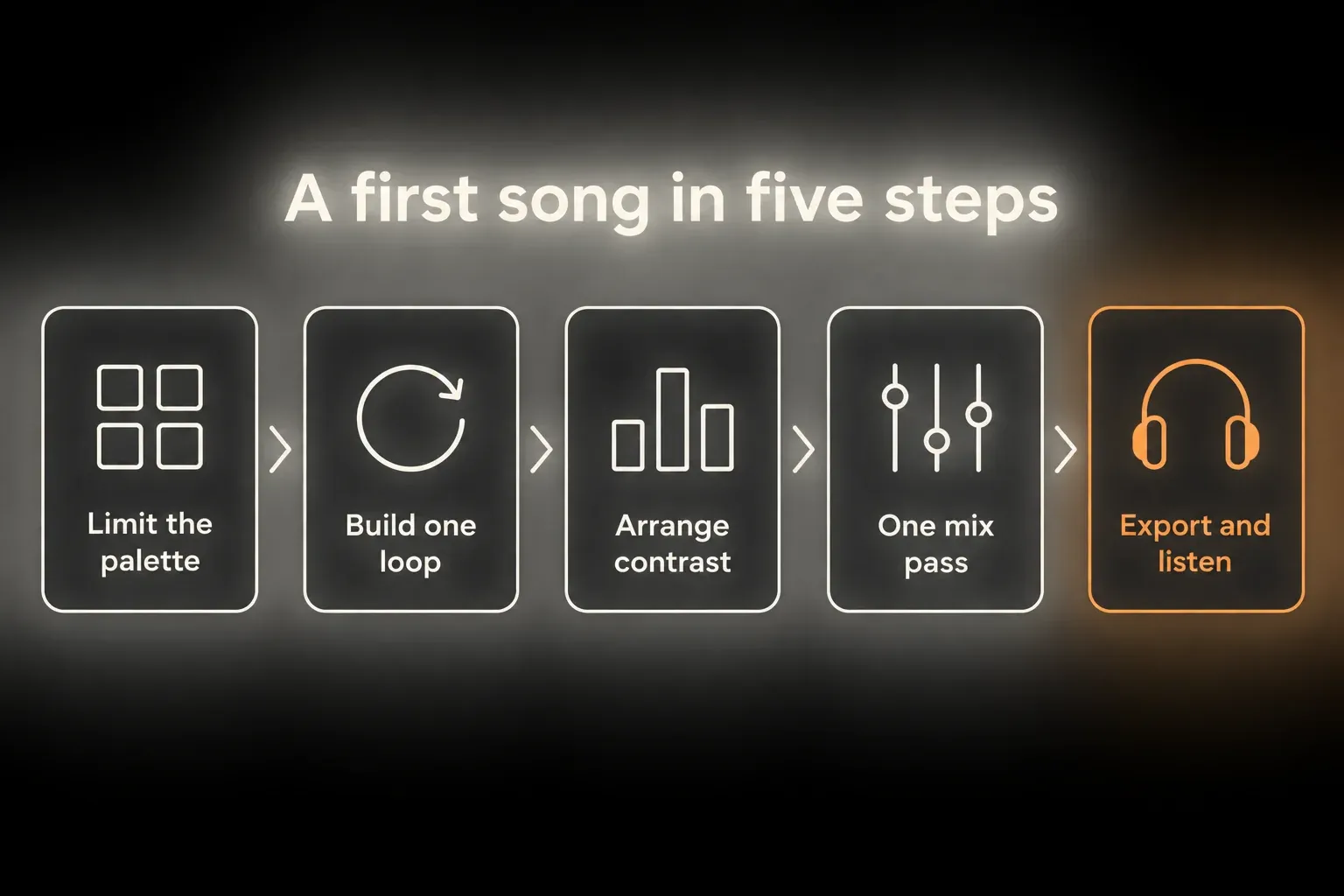
Load drums, bass, chords and a lead
Open a new Live Set and set the tempo to 120 BPM and the time signature to 4/4. Create or reuse four MIDI tracks and name them Drums, Bass, Chords and Lead. Load an installed Drum Rack kit on Drums, a bass instrument on Bass, and playable keyboard or synth presets on the other two. An empty Drum Rack stays silent until its pads hold instruments or samples, so pick a kit with an audible kick, snare and closed hi-hat.
Keep the same presets for the whole exercise. If you prefer video demonstrations of each sound role, Ableton’s first-track series with Bad Snacks walks through beat, harmony, bass, melody, arrangement, mixing and export. That series uses Live 12 Suite, while the four-track note exercise here does not depend on its presets.
Save the Set under a recognizable name in its own Project folder before adding external samples. A Project holds related Sets and their media, so it is more than the .als file. Later versions of this song belong in the same Project, and unrelated songs in separate ones. Ableton explains the Set saving commands, including Save Live Set As and Save a Copy.
Program an eight-bar loop with these notes
This example works in Arrangement View. On Drums, select the empty range from bar 1 to the start of bar 9, then choose Create → Insert Empty MIDI Clip(s), or press Ctrl+Shift+M on Windows and Cmd+Shift+M on Mac. Repeat on the other three MIDI tracks, and double-click a clip to open its note editor. Double-clicking adds notes and dragging their ends changes their length; Ableton documents these MIDI clip and note controls.
- Drums: use a 1/8 fixed grid in the note editor. In bar 1, place kick hits on beats 1 and 3, snare hits on beats 2 and 4, and eight evenly spaced closed hi-hat hits. Pick the lanes by the kit’s audible pad names, not by an assumed universal note number. Select the notes across exactly that first bar and duplicate the one-bar selection through bar 8, then listen for a steady pulse before moving on.
- Bass: enter a C2 note from bar 1 to bar 3, A1 from bar 3 to bar 5, F1 from bar 5 to bar 7, and G1 from bar 7 to bar 9, which gives four two-bar notes. If the preset sits too low or too high, move all four notes together by an octave; if it decays quickly, shorten and repeat each note instead of expecting it to sustain.
- Chords: over the same two-bar ranges, enter C3–E3–G3, then A2–C3–E3, then F2–A2–C3, then G2–B2–D3, with the three notes of each chord starting together. That gives C major, A minor, F major and G major, each with the bass note on the chord root.
- Lead: in bar 1, try four quarter notes E4, G4, A4, G4 and leave bar 2 empty. In bar 3, try E4, C4, A3, C4 and leave bar 4 empty. In bar 5, try A3, C4, D4, C4 and leave bar 6 empty. In bar 7, try B3, D4, E4, D4 and leave bar 8 empty. These are suggested phrases, not a required melody, so change or shorten a note whenever the combination sounds crowded.
- Optional texture: use one sound you already have at a section boundary, or skip this track entirely if the four parts already sound busy.
Loop the Arrangement from bar 1 to bar 9 and listen through. If a track is silent, check that it holds an instrument and that its activator is on before changing any notes. If a chord sounds muddy, raise its notes an octave or lower its track level. The bass can stay simple while the lead leaves space. Ableton’s interactive Learning Music lessons help if beats, note names or chords are new to you.
Turn the loop into three Arrangement sections
If you started in Session View, move the clips over before following the section plan. Session View versus Arrangement View explains how to copy clips and record a Session performance. Afterwards, press Back to Arrangement if Session clips are still overriding the timeline, because switching views alone does not change which clips play.
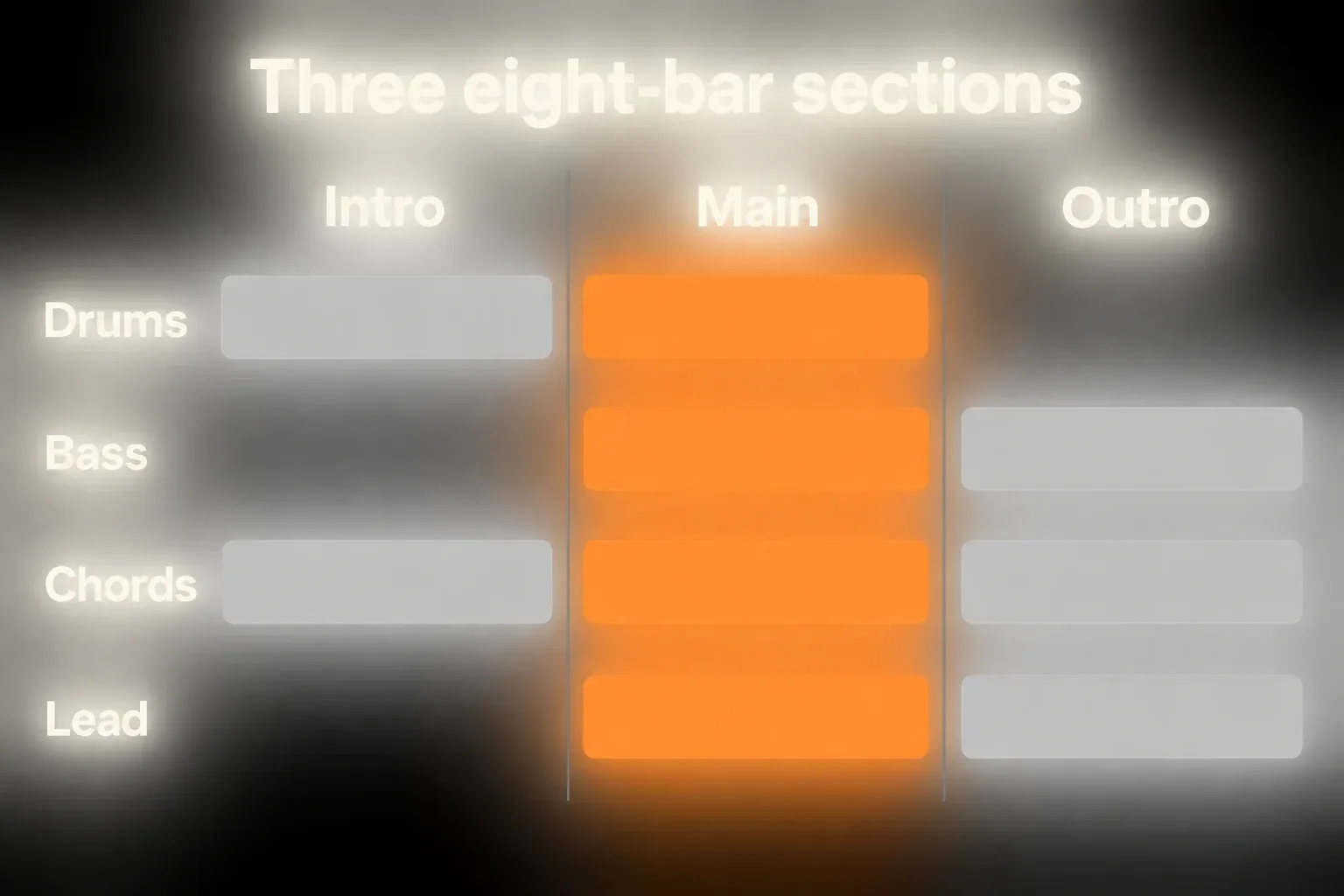
Select the clips across the four tracks for bars 1–9 and duplicate them twice, so the three sections start at bars 1, 9 and 17 and end at bar 25. To leave a part out of only one section, work on the copied clips, not the track activators. For example, remove the bass and lead clips from the intro and the drum clip from the outro. The Arrangement editing guide covers growing this sketch into a longer song.
| Section | Range | First edit to try |
|---|---|---|
| Intro | Bars 1–8 | Keep chords and drums; remove bass and lead clips. |
| Main | Bars 9–16 | Let all four parts play; change the last drum beat if it helps the transition. |
| Outro | Bars 17–24 | Keep chords and a quieter lead; remove drums and bass, then leave room for the final tail. |
This is a 24-bar exercise, not a universal song form. At four beats per bar and 120 beats per minute, each eight-bar section lasts 16 seconds. For a longer main section, repeat it with one audible change, and resist adding length just to reach a streaming-style duration.
Add one transition and one automation move
Play across bars 9 and 17. If an entrance feels abrupt, try removing the last kick before it, shortening a chord or leaving a beat of silence, working on a copy of the clip when the variation should happen only there. A riser Pack is not needed to make the section change audible.
For one simple automation move, fade the lead near the end. In Arrangement, right-click its track volume control and choose Show Automation. Add breakpoints that hold the current level until late in the outro and then lower it towards the end, and adjust the slope by ear. Our automation guide explains breakpoints and how to restore automation after a manual control change.
Balance the parts before exporting
Start with the drums and bass, bring in the chords, then set the lead where its phrase is clear. Check both the track and Main meters for clipping; if an instrument or effect distorts by accident, lowering Main alone will not repair that earlier stage, and the gain-staging checks show where the overload begins. Compare any effect on and off at a similar perceived level before keeping it.
Listen once at a comfortable level and once quietly, and note the biggest distractions: bass masking the kick, a lead that disappears or a section that arrives too loud. Fix those and export a listening copy. The single pass limits this exercise; it does not force you to keep audible faults or stop you from mixing further later.
Save the Project without copying everything blindly
Save Live Set stores the Set’s clips, positions, devices and settings, yet audio clips can still point to media elsewhere on disk. Collect All and Save copies selected external audio and video into the Project and can include Max for Live devices, but it does not copy third-party plug-ins.
Collect when external media has to travel with the Project or when you archive it. Running the command again does not automatically duplicate every file that is already collected; storage grows when you bring in more external media or keep separate Project copies, recordings and renders. Save related versions together so they can share samples, and keep a separate backup of important work. Our Collect All and Save guide explains what still depends on the destination computer.
Export the exact song and reopen it
Select from bar 1 to the end of the last audible tail in Arrangement, then open File → Export Audio/Video. Check Render Start and Render Length instead of assuming the last clip includes the whole reverb tail. Choose Main for a stereo listening mix, and make sure Session clips are not overriding the intended timeline. Ableton’s export selection documentation explains the output and range controls.
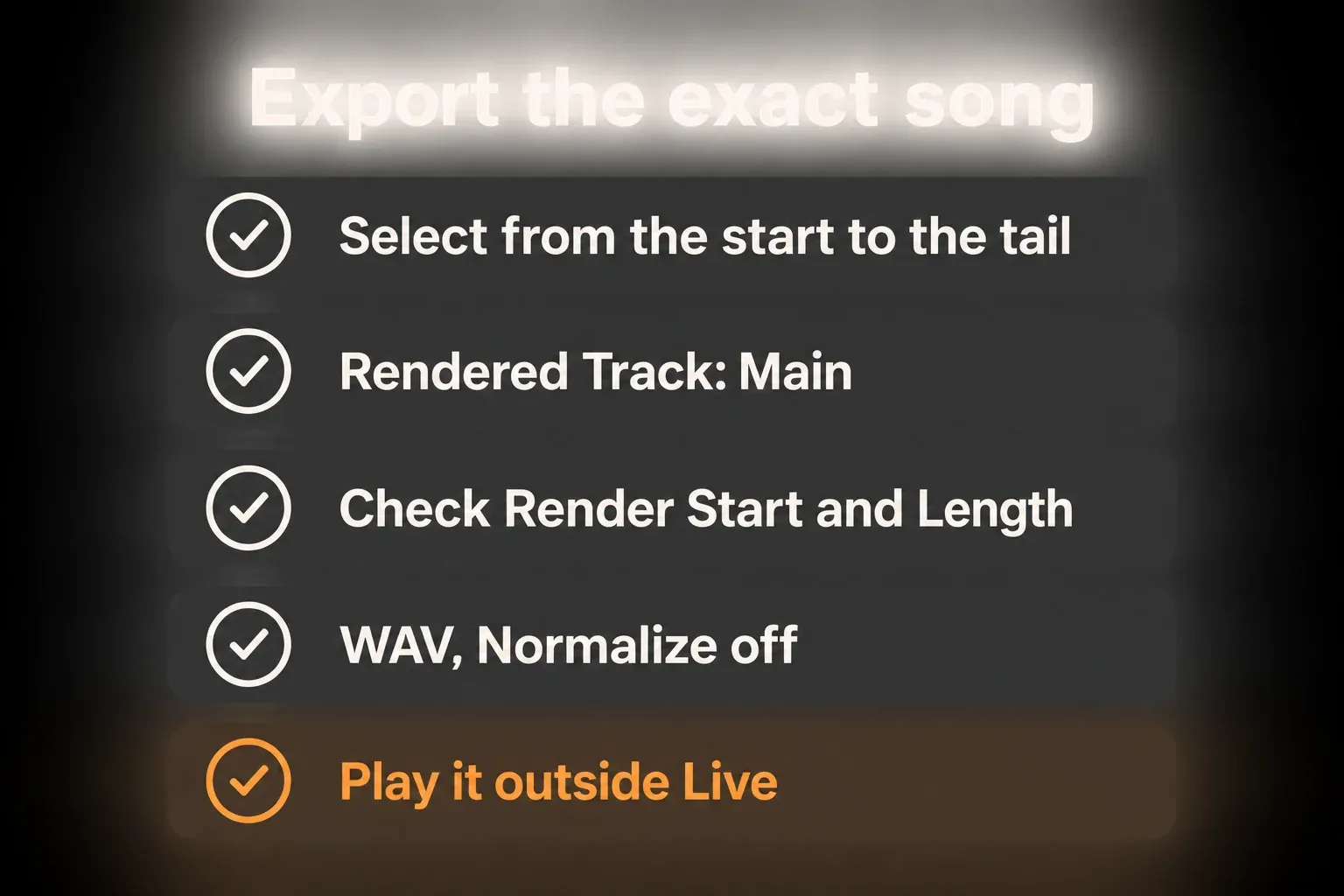
For this practice copy, a PCM WAV at 24-bit and the current project sample rate is a reasonable choice, not a universal delivery requirement. Leave Normalize, Convert to Mono and Render as Loop off so the check keeps your stereo balance and a single beginning. The export settings guide covers dither and requirements for specific destinations. Give the file a clear name and keep it apart from the source samples.
Play the exported file in an ordinary audio player. If you also check it inside Live, use a new empty Set, turn Warp off on the imported file and keep the Main track free of effects, or you may hear time-stretching or a second pass of processing. Listen from the first sound to the final tail for missing sections, unwanted silence, clipped starts and cut-off reverb, and fix any audible export error before calling the exercise finished.
Resource impact: keep the first Project small enough to finish
CPU: keep the instrument chains understandable. Stock does not automatically mean light, and long effect chains, high-quality modes and many voices can still cause dropouts.
RAM: sample-based instruments can load a lot of audio. Deleting an unused instrument in a saved copy frees resources, while muting its track is not a reliable way to release memory.
Disk and Set size: recorded audio, collected external media, freeze files and extra exports take up storage. Ordinary MIDI edits or another Collect command do not by themselves duplicate the whole Project.
Lowest-resource starting point: use the four core tracks and installed sounds, skip the optional texture and export one listening mix before loading more instruments.
When not to optimize: if playback is stable, keep the MIDI instruments editable. Committing them to audio only to make the track count look smaller gains nothing.
FAQ
How many tracks should my first Ableton Live song use?
Four core tracks for this exercise: drums, bass, chords and lead, with an optional fifth texture. It is a creative constraint, not Live’s track limit; the available instruments and the maximum number of tracks depend on your edition.
Should I start my first song in Session View or Arrangement View?
This exercise starts in Arrangement View so the bar positions are easy to follow. Session View is also useful for testing loop combinations, and you can move those clips to Arrangement when you want fixed section lengths and a definite ending.
How do I turn an eight-bar loop into a song?
Copy the eight-bar idea into three sections starting at bars 1, 9 and 17. Take the bass and lead clips out of the intro, let the full idea play in the main section and thin out the outro. Edit the clips of each section instead of muting a whole track that has to come back later.
Do I need to master my first song before exporting it?
No. Check the arrangement, fix unintended clipping and balance the parts, then export a listening copy. Mastering is not required to hear whether your first song works outside the open Set.
What export settings should I use for a first Ableton Live song?
Choose Main, check the exact start and length, and enable PCM. For this exercise, 24-bit WAV at the current project sample rate makes a reasonable listening copy. Leave Normalize, Convert to Mono and Render as Loop off, and follow different settings when a real delivery destination specifies them.
When should I use Collect All and Save?
When external samples have to travel with the Set, or when you archive it. It copies the selected media into the Project and can include Max for Live devices, but not installed third-party plug-ins. Copy the whole Project folder, not just its .als file.
