
Short answer: arm a MIDI track or set its monitor to In, play the phrase, then press the Capture MIDI button. Live retrieves the recent MIDI received by eligible tracks and turns it into a clip. If the button stays grey, prove that MIDI entered Live on an armed or input-monitored track before changing clip settings.
Scope checked September 17, 2026: current Live 12 recording manual, Help Center behavior and shortcut table. Older Live 10 shortcut advice is called out because the same key combination has a different current assignment.
Capture MIDI retrieves input; it does not replace normal recording
Normal MIDI recording starts from an explicit record action and follows the active recording route. Capture MIDI is for the phrase played just before that decision. Live continuously retains recent MIDI input on tracks that are armed or monitored through In, then creates or extends clips when Capture is pressed.
Use normal recording when the take needs a defined count-in, punch range or documented start. Use Capture when an unplanned phrase is worth keeping. The resulting clip is ordinary editable MIDI; Capture does not preserve the sound of an external instrument unless that audio is recorded separately.
Set up one eligible MIDI track
- Connect the controller or hardware MIDI output.
- In Live's Tempo & MIDI settings, enable Track for that input.
- Create or select the destination MIDI track.
- Choose the intended input port and channel when the default All Ins route is too broad.
- Arm the track, or set its monitor to In.
- Play a short phrase and watch Live's MIDI input and track indicators.
Once eligible data exists, the Capture MIDI button changes from unavailable to ready. If the input indicator reacts but the track does not, follow the MIDI keyboard input diagnostic. If the captured clip exists but makes no sound, use the MIDI notes not playing route.
Capture into a new Set
When the transport is stopped and the Set has no other clips, Capture MIDI can do more than recover notes. The current recording manual says Live creates a clip on each monitored MIDI track, places clips in the Session or Arrangement View that currently has focus, estimates a tempo, sets loop boundaries and starts playback.
Tempo detection is documented in an 80–160 BPM range. That range describes Live's new-Set analysis, not a restriction on the musical phrase you may keep. If your idea belongs outside that range, adjust the song tempo after capture and verify the clip against the intended pulse.
Ending the phrase on the downbeat of the next bar helps Live infer the loop. That is a musical input cue, not a promise that every rubato phrase will land on the desired bar line.
Understand what changes when the Set already has clips
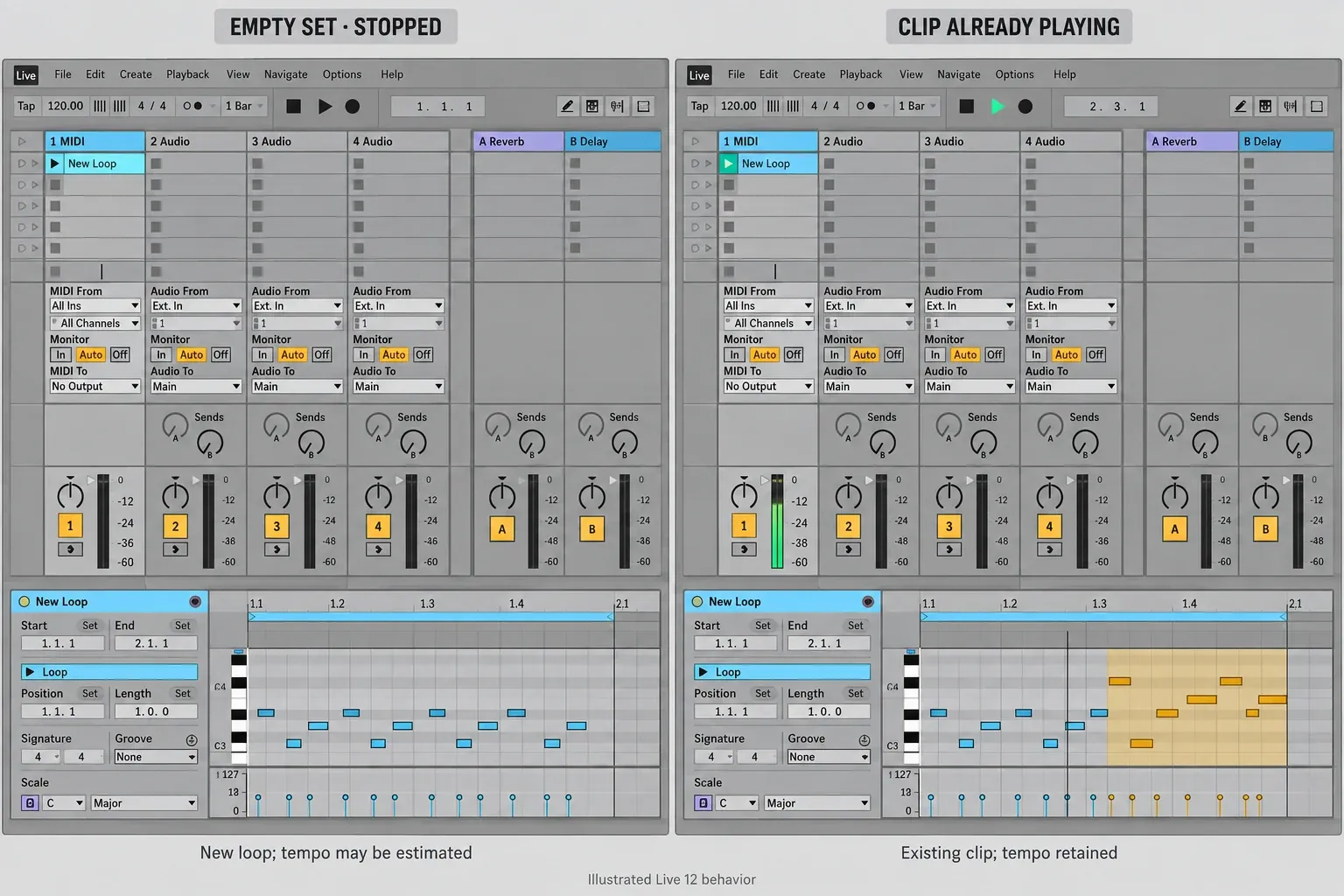
Once a Set has an established tempo or running transport, Capture MIDI respects that context instead of replacing the song tempo. If no clip is playing on the target track, Live creates a clip from the recent phrase and aligns it to the current musical timeline.
If a Session clip is already playing on the eligible track, Capture can add the recent material to the existing clip. This is useful for building a pattern in layers, but it also means the command may alter the clip you were rehearsing over. Duplicate a valuable clip before exploratory overdubs when preserving its current state matters.
Confirm Session or Arrangement focus before pressing Capture
In a new Set, the active View decides where the new clip appears. If the reader expected a Session slot but Arrangement has focus, the capture may look missing while sitting in the other View. Press Tab to inspect both, then confirm which track received the clip.
Session and Arrangement share tracks but not identical clip placement. Keep one target track selected and use a short phrase while learning the behavior. A controlled capture is easier to find than several monitored tracks producing several clips at once.
Do not use the old Capture shortcut blindly
Older Live 10 documentation listed Ctrl+Shift+C on Windows and Cmd+Shift+C on Mac for Capture MIDI. The current Live 12 shortcut table does not list a dedicated Capture command and uses that combination for Copy Time.
Use the Capture MIDI button in the Control Bar. If you need a keyboard or controller action, enter Key Map or MIDI Map mode and assign the Capture control to an unused input. Document the mapping in a performance Set so another shortcut change does not look like a broken feature.
Fix Capture MIDI not working in signal order
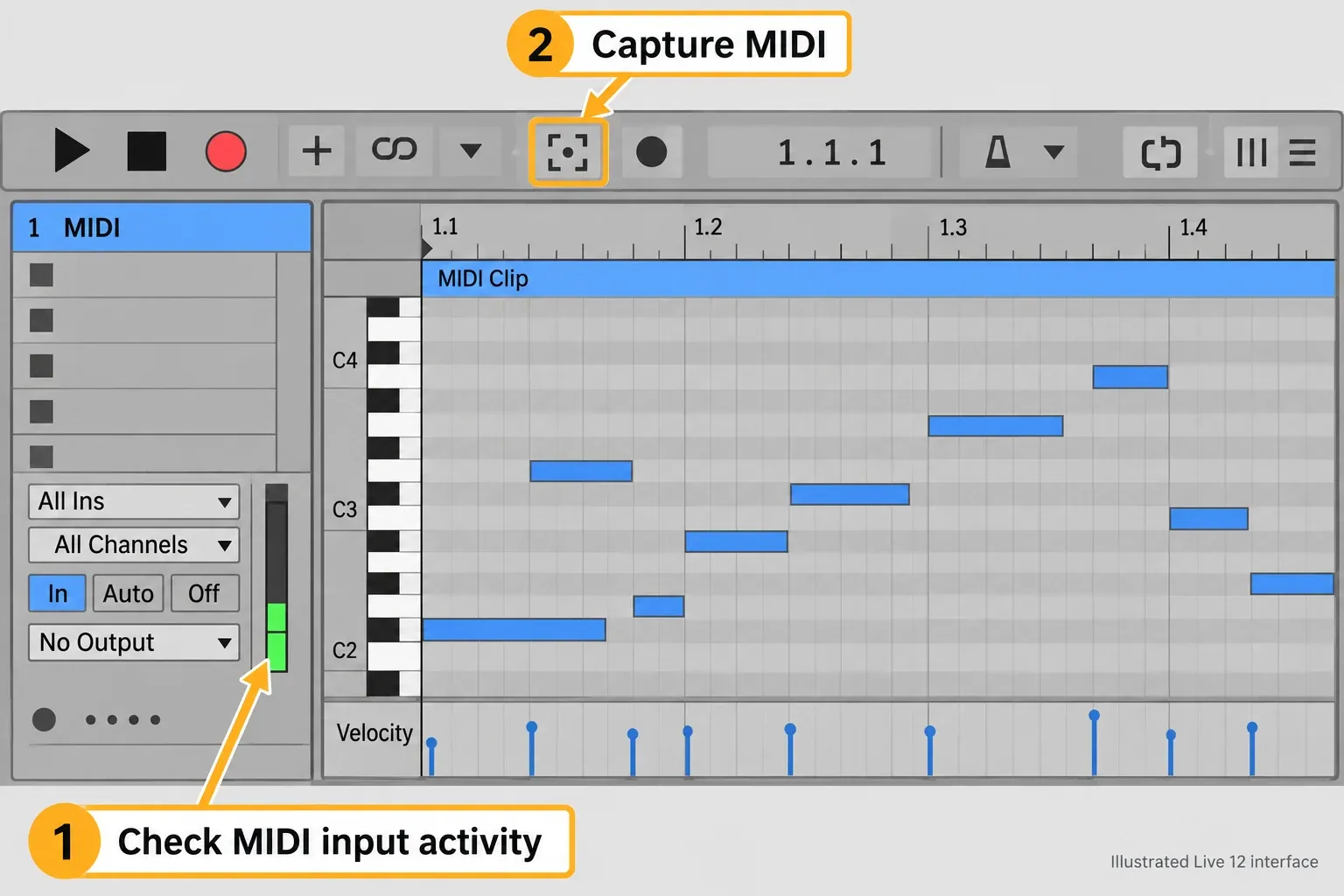
- Button grey: no eligible data is ready. Arm the intended track or set monitor to In, then play again.
- No global MIDI indicator: check the cable, device, driver and Track input switch.
- Global indicator but no track input: inspect the track's input port, channel and monitoring state.
- Track receives notes but Capture creates nothing visible: check both Session and Arrangement Views and the other monitored tracks.
- Clip exists but is silent: load or enable an instrument, check track activation and trace MIDI to the device.
- Hardware synth was audible but nothing captured: local sound is not MIDI evidence; route the synth's MIDI output into Live.
Ableton documents a rolling event limit: when 16,384 events are reached, the oldest 1,024 are discarded. Capture is designed for recent performance material, not an unlimited background archive.
Clean the captured clip without erasing the phrase
- Duplicate the first useful clip before major timing edits.
- Move the loop boundaries around the actual phrase.
- Delete accidental notes and sustain data that do not belong.
- Correct the first downbeat before applying broad quantization.
- Use restrained quantize or groove only after the phrase's intended timing is clear.
Capture MIDI uses little system capacity because MIDI data is compact. The instrument receiving those notes can still be expensive, so a dense device chain is not made lighter by the way the notes were captured.
Edition and controller notes
The current Live 12 comparison lists Capture MIDI in Intro, Standard and Suite, and Ableton's Help Center describes the feature across Live versions. Push controllers have their own Capture gestures: the current manual documents Record plus New on Push 1 and Push 2, and a dedicated Capture button on Push 3.
Controller behavior can change with firmware and mode. The reliable baseline remains the Control Bar button after Live has received MIDI on an eligible track.
For the wider path from captured ideas through note editing, drums and sampling, use the MIDI, beats and sampling hub.
FAQ
What does Capture MIDI do in Ableton Live?
It creates or updates MIDI clips from notes and other MIDI data that Live has already received on armed or input-monitored MIDI tracks, even when normal recording was not running.
Why is the Capture MIDI button greyed out?
Live has no eligible MIDI data to retrieve. Arm the intended MIDI track or set its monitor to In, enable Track for the controller input, play the phrase, and check that the Capture button becomes available.
Does Capture MIDI work in Session and Arrangement View?
Yes. In a new Set, Live places captured clips in whichever View is currently in focus. Its behavior changes when playback is running or a clip already exists, so confirm the active View and selected track before capturing.
Does Capture MIDI change the tempo?
When the transport is stopped and the Set contains no clips, Live can estimate the phrase tempo, create a loop and start playback. If playback is already running or clips exist, Capture MIDI does not replace the current song tempo.
What is the Capture MIDI shortcut in Live 12?
The current Live 12 shortcut table does not list a dedicated Capture MIDI shortcut. Older Live 10 documentation showed Ctrl+Shift+C on Windows and Cmd+Shift+C on Mac, but that combination is used for Copy Time in the current Live 12 table. Use the Capture button or assign a Key or MIDI mapping.
Why did my hardware synth performance not get captured?
Hearing a hardware synth locally does not prove MIDI entered Live. Connect its MIDI or USB-MIDI output, enable Track for that input, and arm the destination MIDI track or set its monitor to In before playing.
