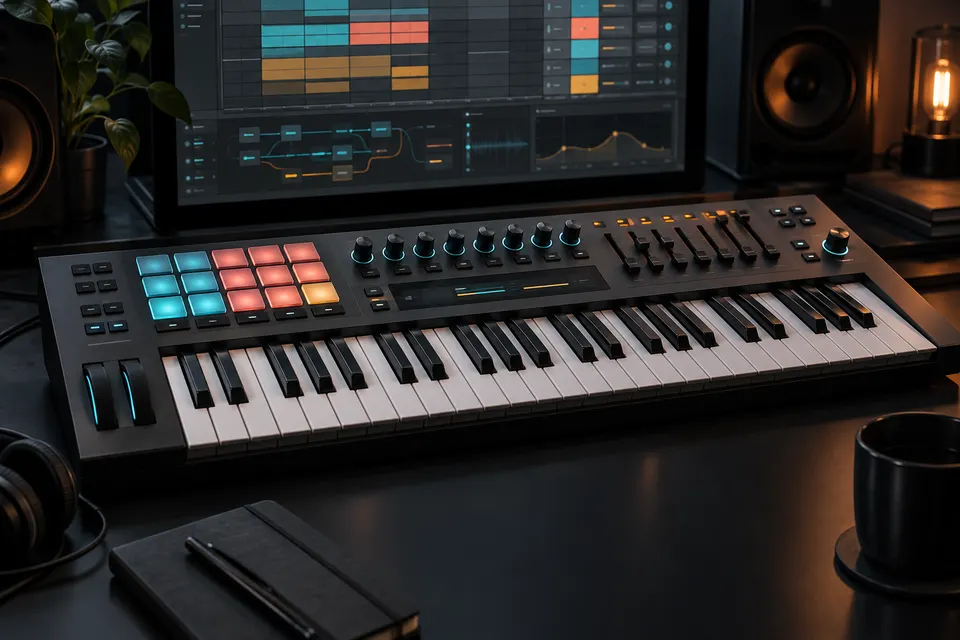
The best MIDI keyboard for Ableton Live is the Novation Launchkey 49 MK4 for most producers. Its 49 semi-weighted keys leave enough room for chords and melodies, while 16 pads, eight encoders and nine faders cover drums, clips, devices and the mixer. If your real priority is portability, Session View or piano range, a different controller is the better buy.
| Best for | Pick | Why it fits | Main compromise |
|---|---|---|---|
| Most Ableton users | Novation Launchkey 49 MK4 | 49 keys, pads, encoders, faders and deep Live integration | Needs real desk space |
| Compact writing | Novation Launchkey Mini 37 MK4 | 37 keys in a sub-1 kg body, strong pad and device control | Mini keys, no faders |
| Session View performance | Akai APC Key 25 MK2 | 40-button clip grid plus a small keyboard | Only 25 keys |
| Two-hand playing | M-Audio Keystation 88 MK3 | 88 full-size semi-weighted keys and simple MIDI connectivity | Very limited mixer and clip controls |
| Small desk with faders | Arturia MiniLab 3 | Four faders, eight encoders, pads and 5-pin MIDI Out | Only 25 slim keys |
Why Launchkey 49 MK4 is the best all-round choice
A controller becomes useful in Ableton when it solves several jobs without making the keyboard itself an afterthought. The Launchkey 49 MK4 specification combines 49 semi-weighted keys, 16 velocity-sensitive pads with polyphonic aftertouch, eight endless encoders and nine faders. Novation also provides a custom Ableton Live script for Live 11 or later.
That balance is the reason it leads this list. Four octaves are enough for most bass lines, chord parts, leads and sample playing without constant octave switching. The pad grid can launch clips or play drums. The encoders and faders give device and mixer control that compact keyboards often omit. Transport, track navigation and Capture MIDI reduce routine mouse trips.
It also has USB-C, a sustain input and a 5-pin MIDI Out, so it can control software and a hardware instrument without relying on the computer as a MIDI bridge. At 730 × 263.5 × 93 mm and 4.08 kg, it is a studio controller rather than a backpack keyboard. Measure the desk before buying it.
Do not choose it because a 49-key label sounds “professional.” Choose it if one device needs to cover playing, Drum Rack, clip launching and mixer moves. The beat making and sampling guide shows where those controls enter a real Live workflow.
Best compact choice: Novation Launchkey Mini 37 MK4
The Launchkey Mini 37 MK4 keeps the same basic Ableton-first idea in a much smaller body: 37 mini keys, 16 velocity-sensitive pads with polyphonic aftertouch, eight encoders, USB-C and a 3.5 mm MIDI Out. Novation lists it at 477.8 × 176.8 × 49 mm and 0.98 kg.
Thirty-seven keys are the compact sweet spot for many producers. You can voice common chords and play a melody above a bass note more comfortably than on 25 keys, yet the keyboard still fits beside a laptop. The cost of that portability is a mini-key action and no physical fader bank.
This is the pick for a small desk, travel rig or secondary controller. It is less convincing for piano practice and long two-hand passages. If the setup will spend its life in one studio, the larger Launchkey 49 earns its footprint.
Best for Session View: Akai APC Key 25 MK2
The APC Key 25 MK2 is a different kind of keyboard. Its headline control is an 8 × 5 matrix of 40 clip-launch buttons arranged across five scenes, paired with 25 velocity-sensitive keys and eight knobs. The official guide documents knob modes for Volume, Pan, Send and Device control.
That layout makes sense when Session View is the center of the job: launching clips, moving through scenes and adjusting a focused device. It also fits the performance approach covered in our Ableton performance and control guide.
The weakness is just as clear. Twenty-five keys are enough for bass lines, one-handed chords and simple melodies, but the clip grid takes priority over keyboard range. Buy it as a compact Session View surface with keys attached, not as a general four-octave instrument.
Best for two-hand playing: M-Audio Keystation 88 MK3
If the musical part needs both hands, controller features do not compensate for a cramped key range. The Keystation 88 MK3 provides 88 full-size, velocity-sensitive semi-weighted keys, pitch and modulation wheels, a volume fader, transport and directional buttons, plus sustain and expression inputs.
USB-MIDI handles the computer connection, while 5-pin MIDI Out can address an external synth. The controller is class-compliant and can run from USB. Its sparse panel is the point: most of the surface is a playable keyboard.
Choose it for piano-range parts, orchestral instruments and wide splits. Avoid it if you expect one device to run Session View or give you eight channels of hands-on mixing. An 88-key keyboard and a separate pad or fader controller can be a cleaner system than one oversized all-purpose surface.
Best compact keyboard with faders: Arturia MiniLab 3
The Arturia MiniLab 3 fits 25 slim velocity-sensitive keys, eight RGB velocity- and pressure-sensitive pads, eight encoders, four faders and a small display into a compact controller. Arturia documents a custom Ableton Live script, USB-C power and full-size 5-pin MIDI Out.
The four faders distinguish it from many small keyboards. They are useful when a compact rig still needs track levels, macro control or drawbar-style moves. The 5-pin output also makes it easier to connect a hardware synth without an adapter cable.
The decision against it is the 25-key range. If faders and hardware MIDI matter more than a third octave, MiniLab 3 is a smart fit. If playing room matters more, move to 37 or 49 keys.
How many keys do you need: 25, 37, 49 or 88?
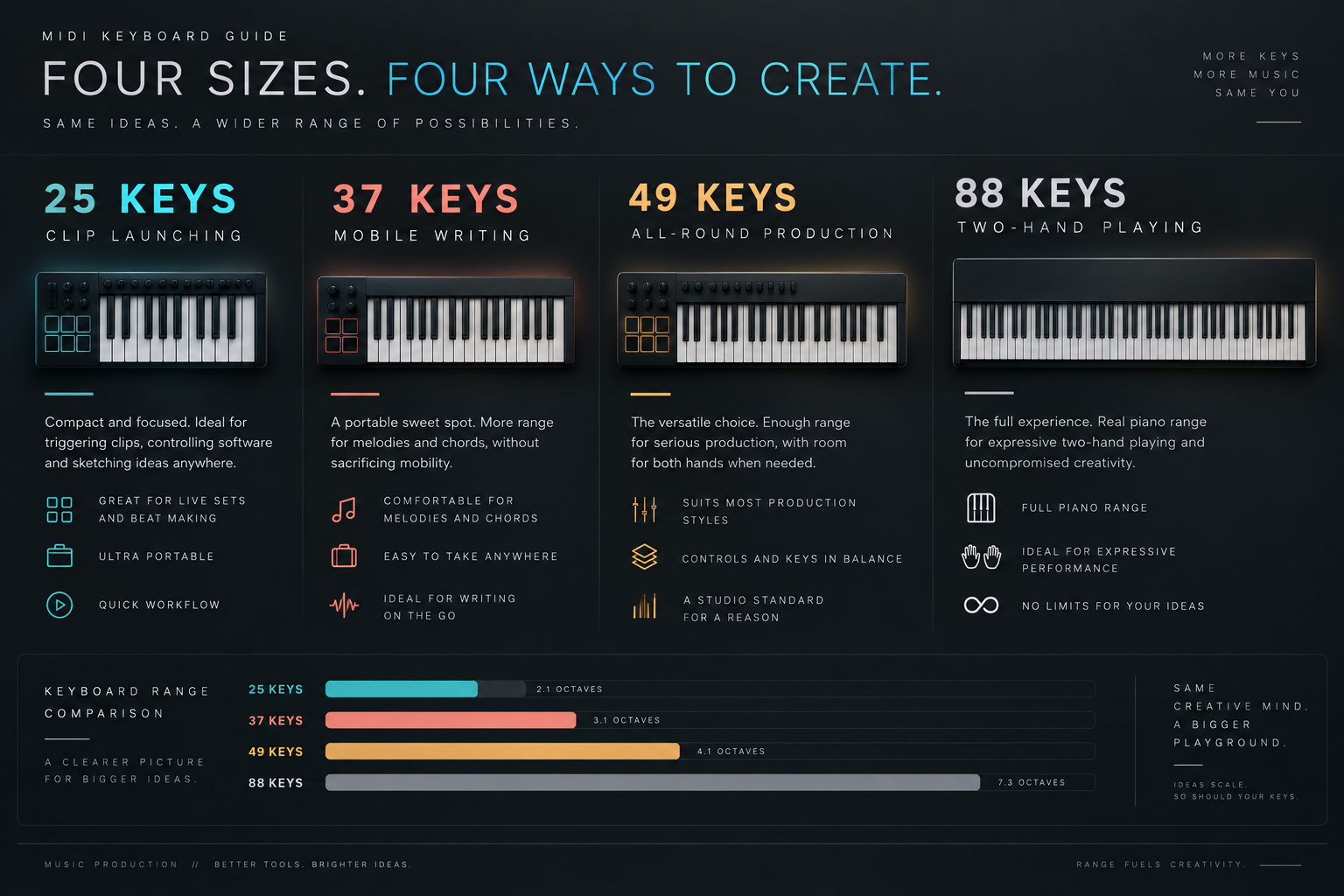
Twenty-five keys work for drum programming, bass lines, sample triggering and short one-handed parts. They are easy to carry and leave room for a clip grid or faders. The limitation appears as soon as you want low bass notes and a chord or melody at the same time.
Thirty-seven keys are the mobile compromise. Three octaves reduce octave-button work without turning the controller into permanent furniture. This is usually the smallest range I would recommend as a main writing keyboard.
Forty-nine keys suit the widest group of Ableton users. Four octaves cover practical two-hand chord shapes, synth parts and Drum Rack work while leaving space for pads and mixer controls. For learning the software rather than performing piano literature, the Ableton learning hub pairs well with this range.
Eighty-eight keys are for range and touch, not portability. Choose them when piano parts, orchestral libraries or large keyboard splits are central. Check desk width, stand depth and the path through the room before comparing software bundles.
Native Ableton integration versus MIDI Mapping
A controller can send MIDI notes to Live without having a dedicated integration script. The keys may work immediately, while transport, device focus, clip colors and mixer feedback remain generic or unmapped.
A supported Control Surface supplies predefined mappings between the hardware and Live. This is what lets a controller follow the selected device, navigate tracks or reflect mixer state without assigning every control by hand. Many supported devices configure automatically; others require choosing the correct Control Surface, Input and Output.
Manual MIDI Mapping is still useful for a fixed performance layout or an unsupported controller. It binds a hardware message to a visible Live control. The MIDI mapping guide covers the assignment workflow and range settings. Manual maps are deliberate and flexible, but they do not automatically provide the same contextual behavior as a dedicated script.
Set up Track, Remote and the Control Surface correctly
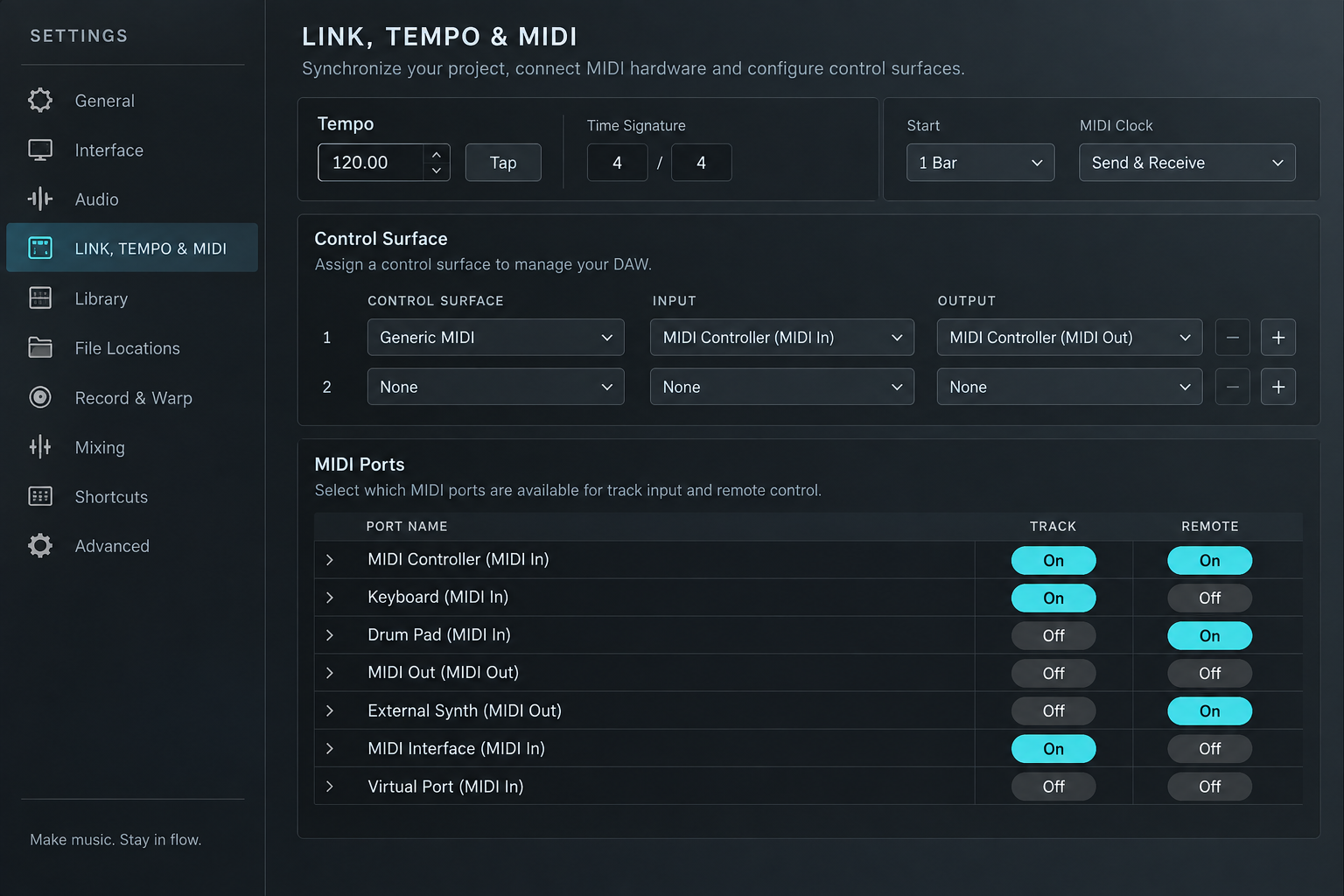
Open Settings → Link, Tempo & MIDI. Ableton’s MIDI port guide separates the jobs of the port switches:
- Track accepts notes and ordinary MIDI data for playing instruments and recording clips.
- Remote accepts MIDI messages for manual MIDI Mapping.
- Control Surface loads the predefined script for a supported device and pairs it with the correct input and output ports.
Start with the manufacturer’s documented Control Surface entry. Enable Track on the keyboard’s note input. Enable Remote only on the input you plan to use for manual mappings; switching it on everywhere creates confusion when several devices share similar messages.
The APC Key 25 MK2 is a good example of why port names matter: Akai’s guide points the Control Surface to APC Key 25 mk2 (Port 2) and separately enables Track on the MIDI input. If notes work but the clip grid does not follow Live, recheck the Control Surface ports before remapping every button.
Load an instrument, arm or monitor the MIDI track and play a key. Then test transport, clip launching and one device control in that order. For pad playing, the Drum Rack guide explains pad-to-note layout and chain behavior.
USB MIDI or hardware MIDI Out?
USB MIDI is enough when the controller talks only to Live. It carries MIDI data and usually powers the keyboard from the computer. A 5-pin or 3.5 mm hardware MIDI output matters when the keyboard must address a synth, groovebox or MIDI interface directly.
The connector alone does not guarantee computer-free operation. Check whether the controller can receive power without a computer and whether its MIDI output sends the keyboard, a configured custom mode or both. A full-size 5-pin socket is convenient in a fixed studio; a 3.5 mm output saves space but may require the correct Type A or Type B adapter.
Which one should you buy?
- Buy Launchkey 49 MK4 when you want one controller for keys, pads, devices and the mixer.
- Buy Launchkey Mini 37 MK4 when the controller must travel or fit beside a laptop.
- Buy APC Key 25 MK2 when Session View and scene launching matter more than keyboard range.
- Buy Keystation 88 MK3 when the musical part needs a full keyboard and you can add controls separately.
- Buy MiniLab 3 when a small footprint, four faders and 5-pin MIDI Out are the deciding features.
Pick the key count first, then the controls, then the integration. That order prevents the common mistake of buying an impressive pad grid that leaves no room to play the parts you actually write.
